How to Turn Messy Notes Into a Study Plan
Notes on paper, slides and screenshots everywhere? Get them into one app, sort them by subject, and let AI turn them into a study guide or a quiz.
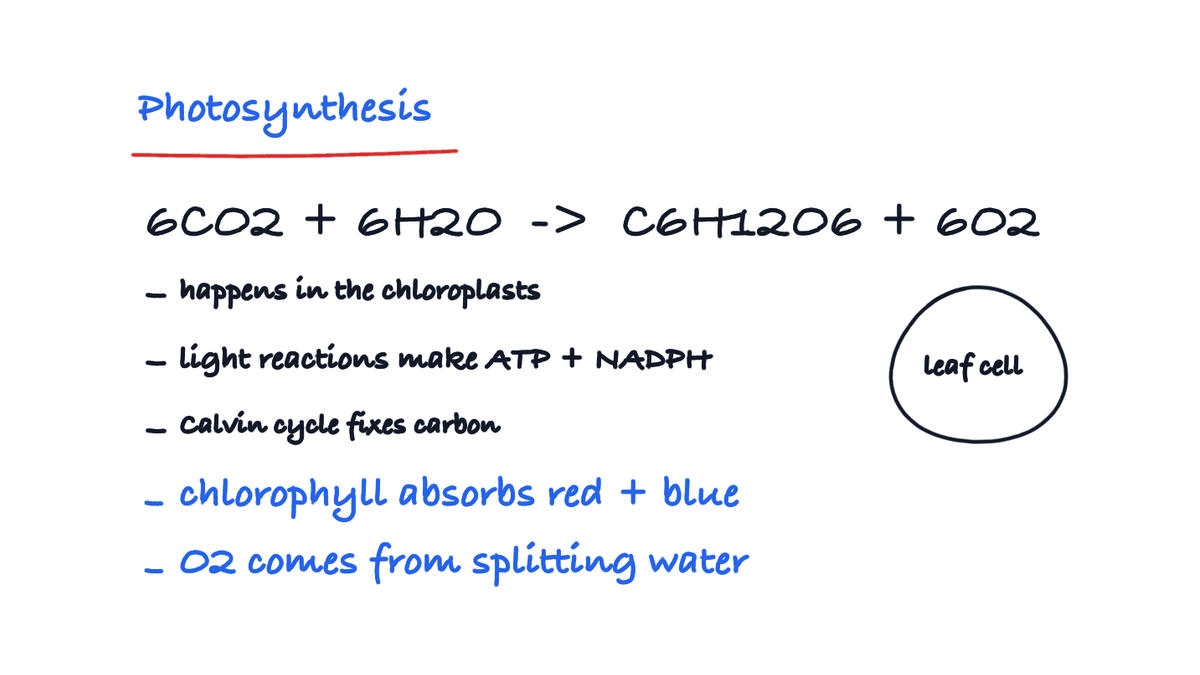
Your notes are everywhere: paper pages, lecture slides, screenshots, half a notebook on your iPad. The exam is coming and you don't know where to start. Get them all into one place, sort them by subject, then let AI turn them into a study guide or a quiz. Here's how, in four steps.
1. Get all your notes into one place
Everything goes into Strawberry Notes, whatever it started as.
- Paper notes: tap + New → Scan and scan the pages with your camera.
- Slides, PDFs and photos: tap + New → Import and pick the files.
- Screenshots: in Photos, tap Share and choose Import to Strawberry Notes.
Want everything for one class in one place? Open a notebook or whiteboard and use its + menu to add scans, photos and PDFs right onto the page.
You don't need to rewrite or retype anything. A scan of your handwriting works just as well as notes you wrote in the app.
2. Sort them by subject
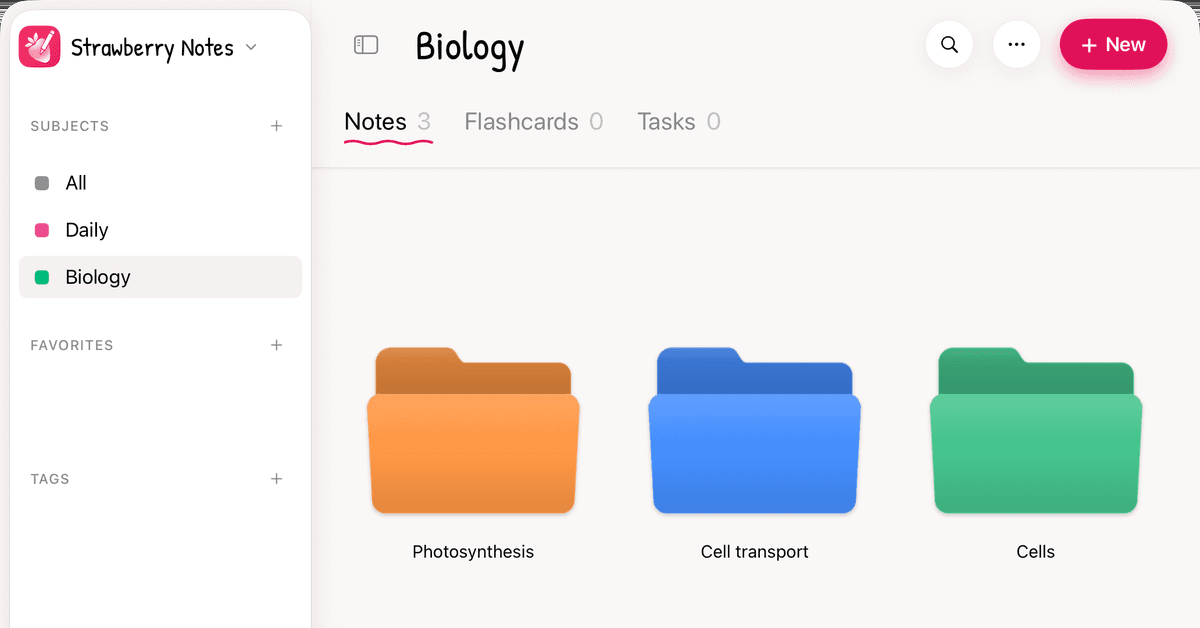
Make a subject for each big area, like Math, Biology or Chemistry. Inside it, make folders however you like: one per class, one per unit, or one per exam topic. Drag your notes into the right folder.
Try sorting by what's on the exam, not by the date you wrote it. Then you can see which topics have pages of notes and which have almost nothing. The thin ones are where to start.
3. Ask AI for a study guide or a quiz
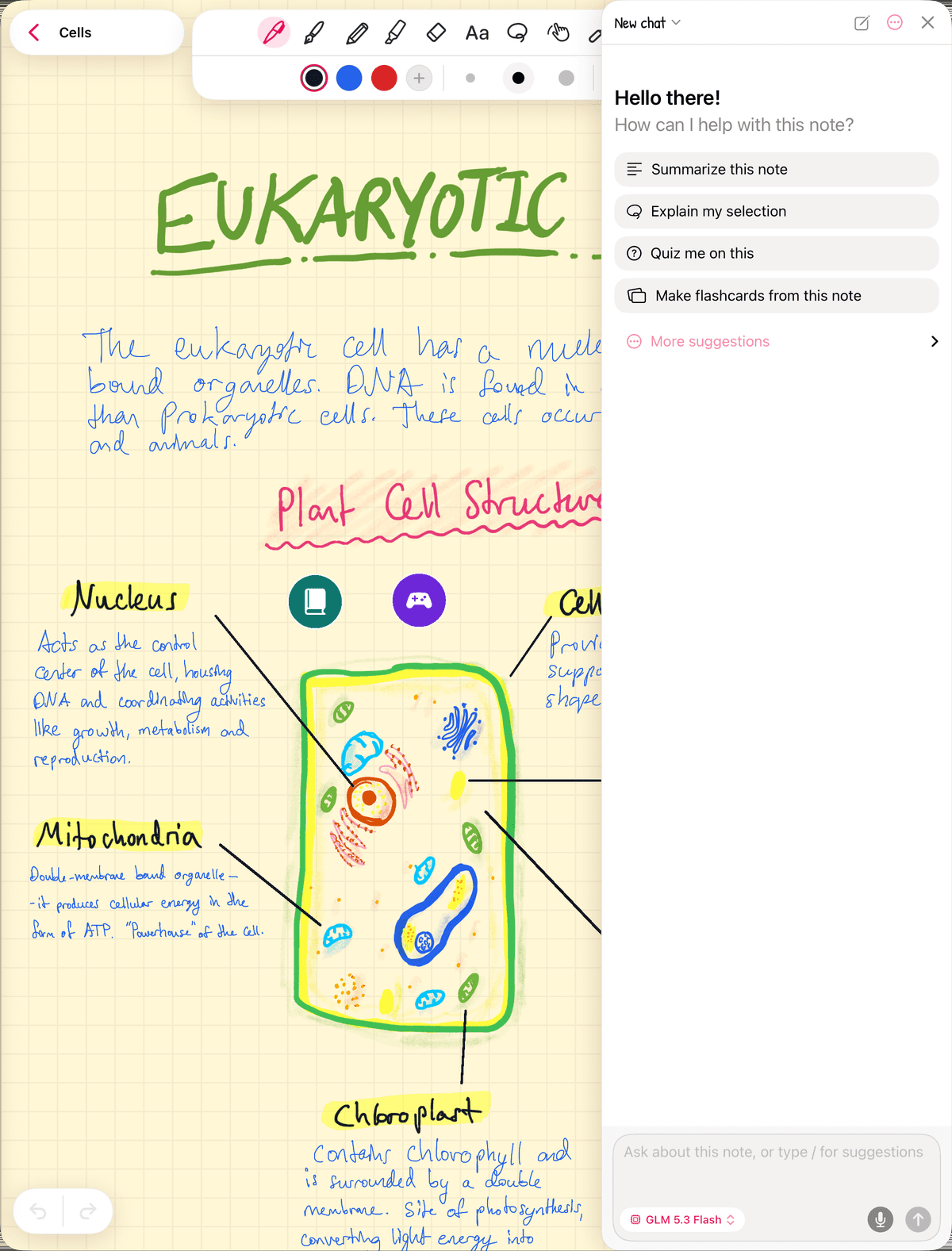
Open a note and tap the AI button. Then pick:
- Make a study guide from this note for a summary of what to know.
- Quiz me on this to test yourself on it.
The quiz is the important part. It shows you what you actually know, not just what looks familiar when you read it. Here's why testing yourself beats rereading.
The AI uses credits (you get free starter credits when you sign in with Apple or Google) or your own OpenRouter key.
4. Turn what you missed into flashcards, tasks and a calendar
Whatever the quiz caught you on, make it a flashcard: lasso it in your notes and tap Edit → Create Flashcard. Here's how to turn handwritten notes into flashcards. The app brings each card back right before you'd forget it.
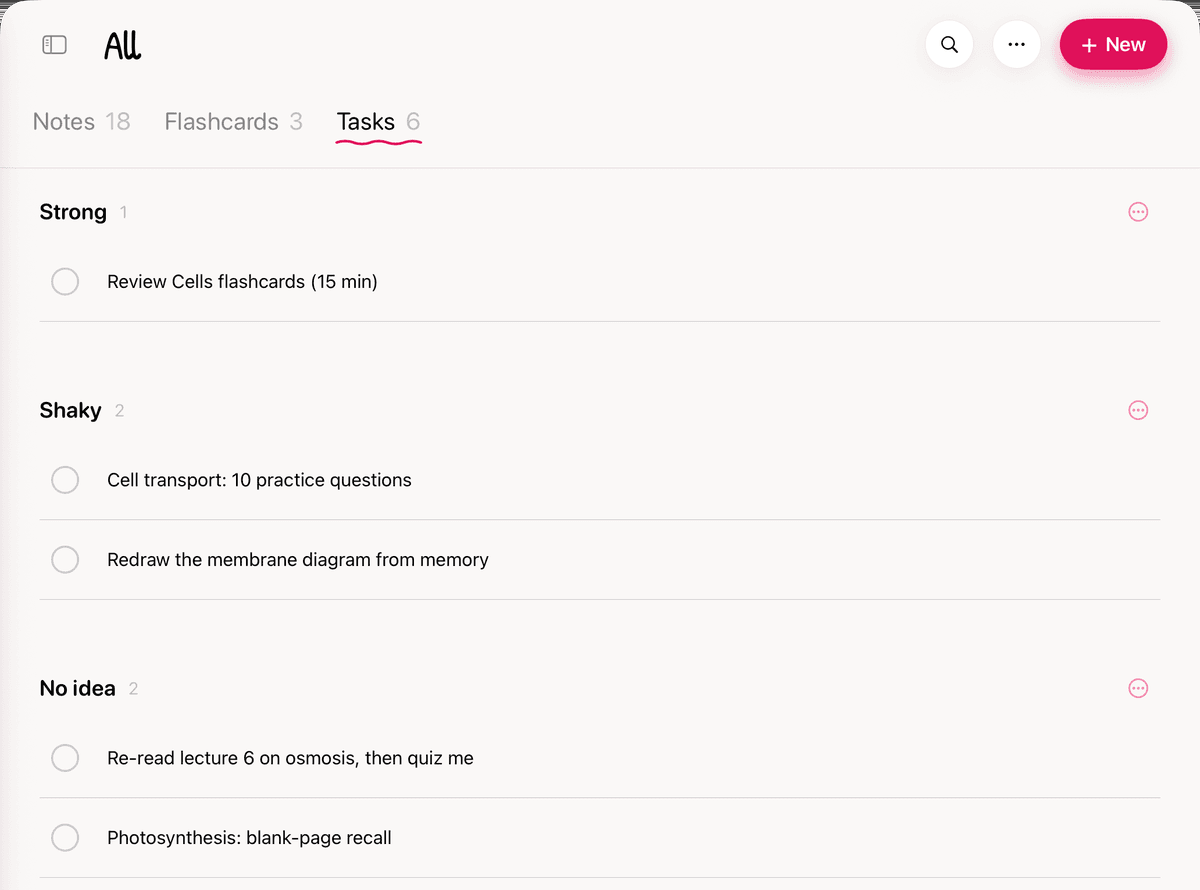
Then plan your sessions in the Tasks tab. Make a task for each one, like "Cell transport: 10 practice questions", and long-press it to Set Reminder. If it helps, sort them onto boards like Strong, Shaky and No idea.
Want to see it by day? With Premium, long-press a subject, choose Customize Tabs and turn on Calendar. It shows your events, the tasks you drag onto a day, and how many flashcard reviews are due.
That's your study plan: your notes, your weak spots, your sessions and your calendar, all in one app.