Make Flashcards from Your Notes
Your notes already have the answers in them. Lasso one, and Strawberry Notes copies it onto a new flashcard. All you write is the question.
How to make a card from your notes
- In your note, choose the Select tool and set it to Lasso.
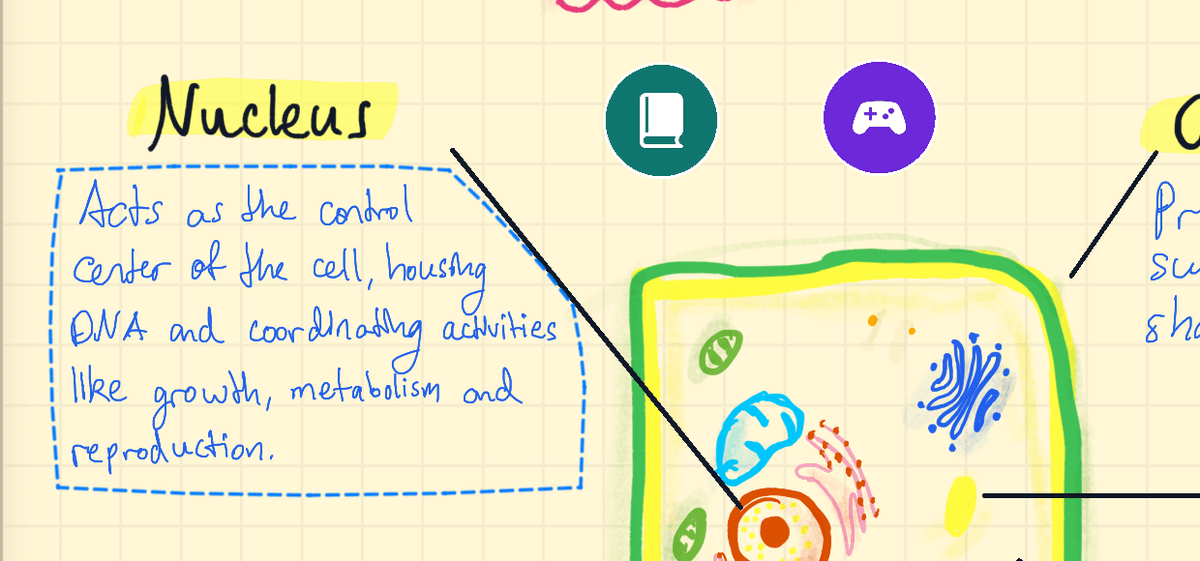
- Draw around the thing you want to learn: a definition, a formula, a labelled diagram.
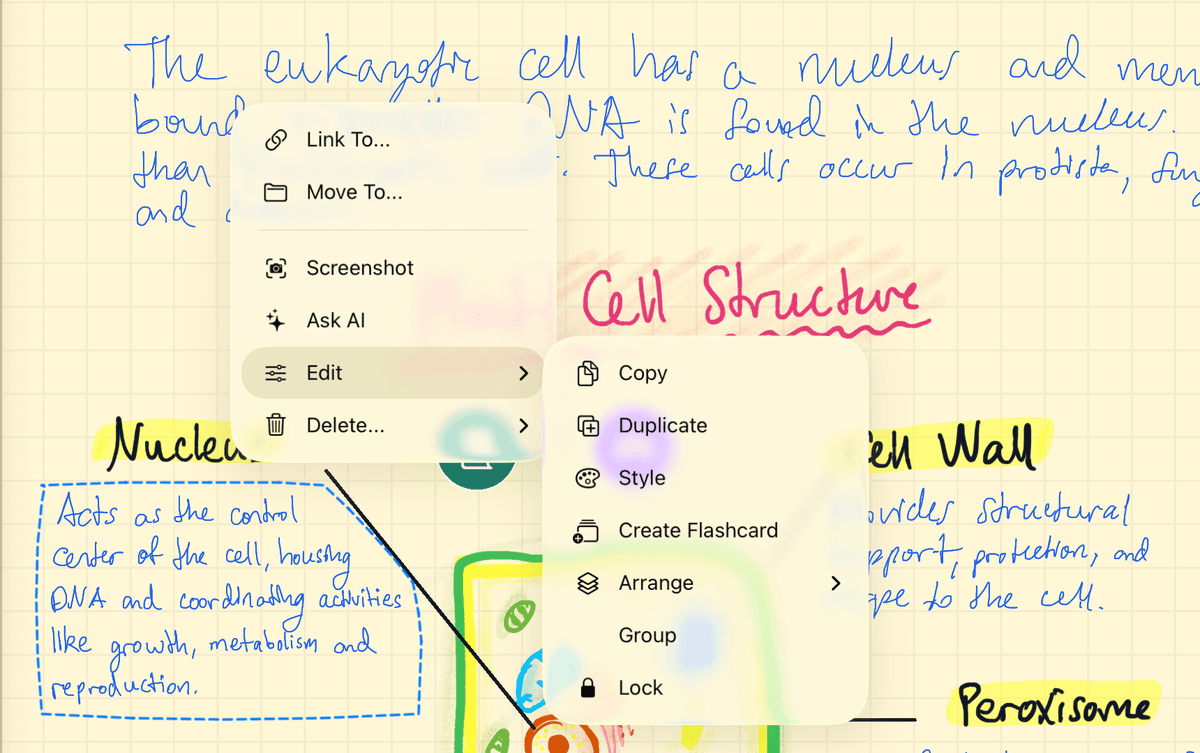
- Tap the selection to open its menu. Tap Edit, then Create Flashcard.
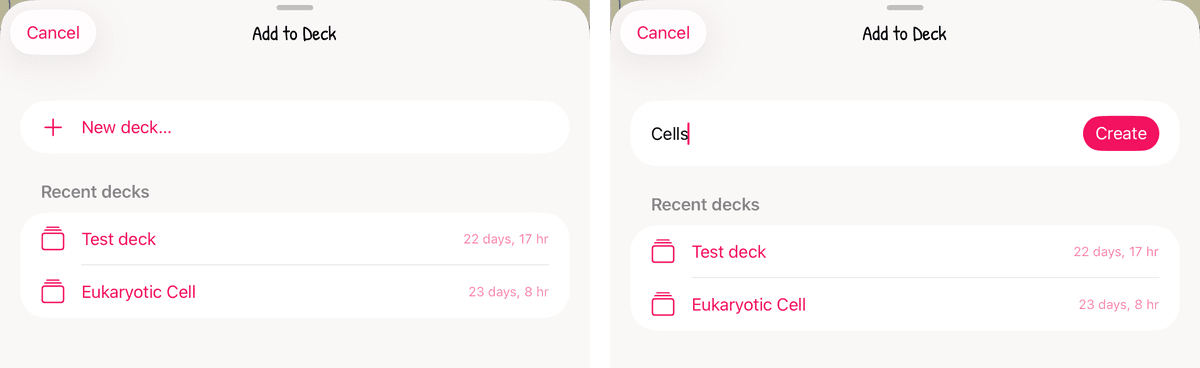
- In Add to Deck, tap a deck under Recent decks. Or tap New deck…, type a Deck name and tap Create.
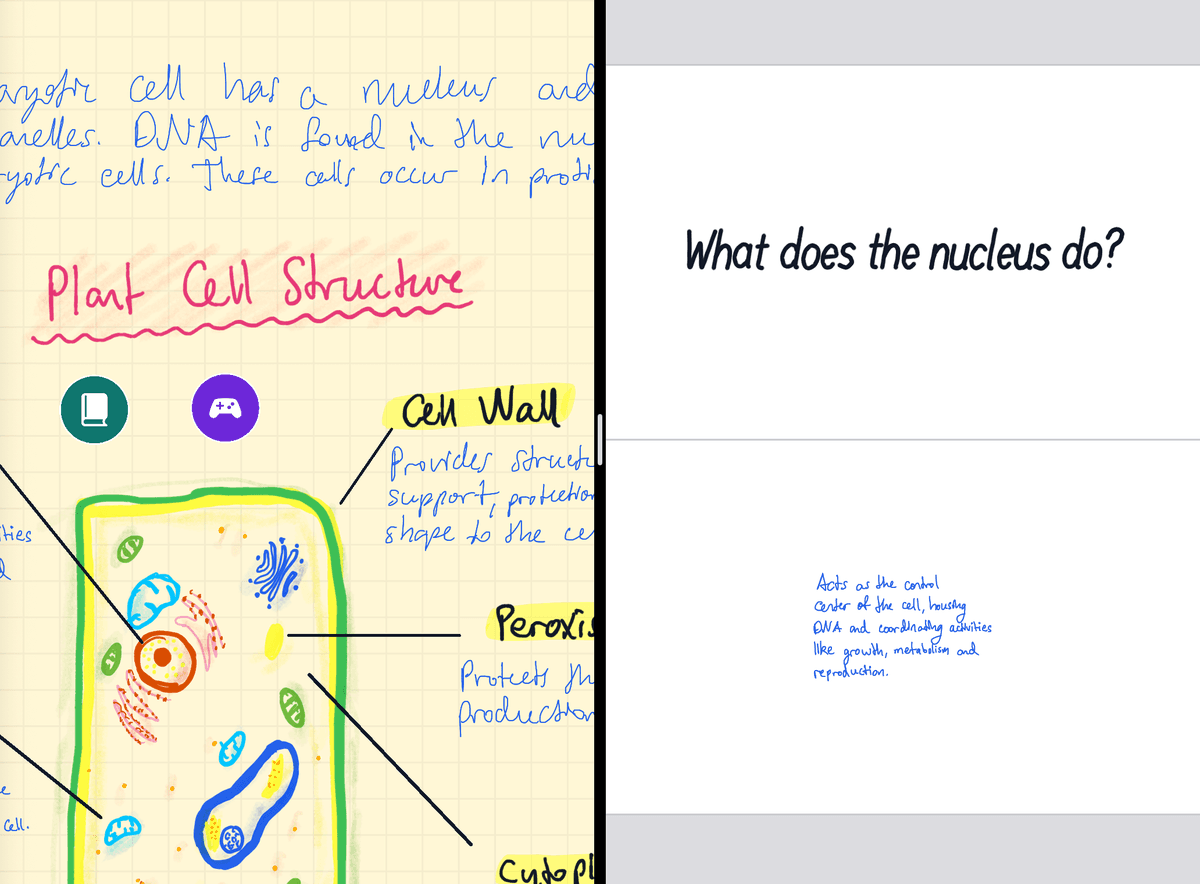
- The deck opens next to your note, on the new card. What you lassoed is on the back of the card. Write your question in the top half, marked Card front.
Your note doesn't change. The card gets its own copy that you can move, resize or write over. A big selection shrinks to fit the back of the card; a small one keeps its size.
Shortcut: circle and hold with the pen
- With the Pen tool, draw a loop all the way around what you want.
- Lift the pen. Then press it down inside the loop and hold still for about a second.
- The loop turns into a lasso around everything inside it. Tap the selection, then Edit → Create Flashcard, as above.
This only works with the Pen tool, on a loop you just drew. Changing tools, panning, zooming or undoing in between cancels it. If nothing is inside the loop, it stays as ink.
Making a lot of cards? Keep the deck beside your note
- Open your note. Then open the sidebar and drag the deck to the left or right edge of the screen. The deck opens next to your note.
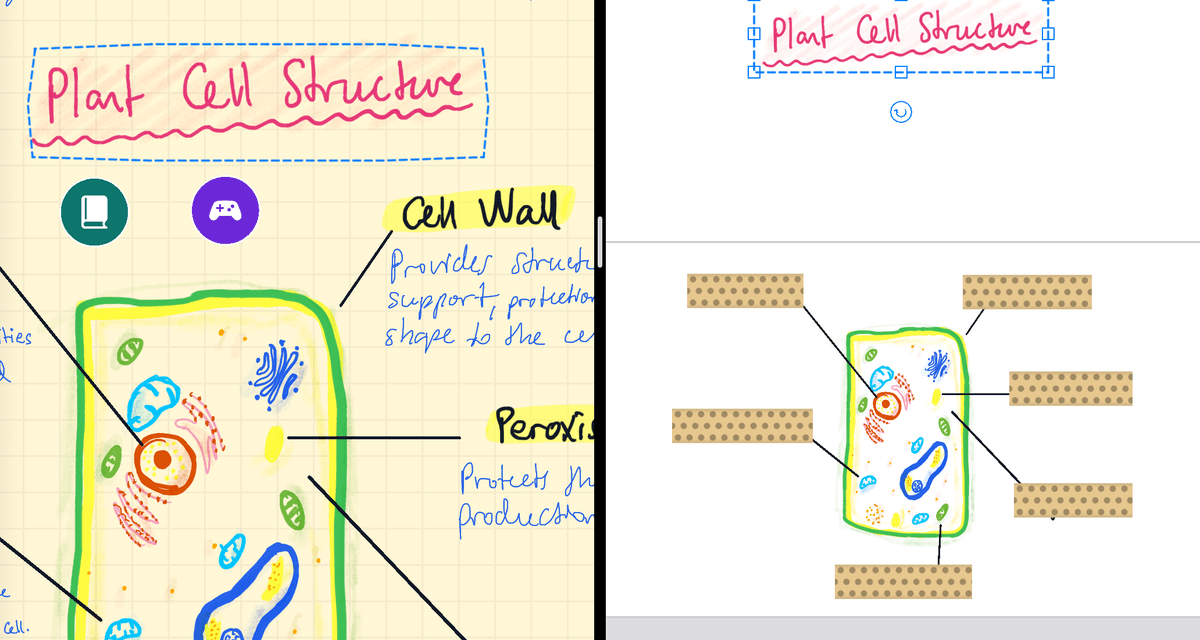
- Lasso anything in your note and drag it onto a card in the deck.
Your note keeps its own copy. This works on iPad, where there's room for two notes side by side.
What's on a card?
A card is one page of the deck. The top half is the front and the bottom half is the back, with a line between them. An empty half says Card front or Card back, so you always know which side you're on.
- Anything you can lasso in a note can go on a card: handwriting, typed text, shapes and pictures.
- Keep your writing inside the card. When you study, only what's inside the front and back areas shows. Ink that runs past the edge is cut off.
- Writing that crosses the middle line goes with the side its centre is on.
- Cards run left to right. Scroll sideways to get to the next one.
Write cards by hand in a deck
- Open the Flashcards tab, tap + New and choose Flashcard Deck.
- The new deck opens on its first card. Write the question in the top half and the answer in the bottom half, with any tool.
- Scroll right to the next blank card and keep going. A card counts as soon as there's something on it.
To come back to a deck later, press and hold it in the Flashcards tab and choose Edit Deck. On a narrow screen, the + New button shows just +.
Add more cards
- Another card from your notes: lasso again and choose Create Flashcard. If the deck is already open, it jumps to the new card. New cards always go after the last card in the deck.
- Copy onto a card you already have: with your note and the deck side by side, lasso something in the note and drag it onto the card. It's copied there, and your note keeps its own.
- Free version: it includes one deck. You can keep adding cards to that deck; making a second deck needs a subscription.