Make Flashcards with AI
No time to make every card yourself? Ask the AI assistant. It reads your note, suggests cards, and makes the deck once you say yes.
Before you start
- Sign in or use your own key. The assistant needs a Strawberry Notes account (sign in with Apple or Google) or your own OpenRouter key.
- Allow sharing once. The first time, the assistant shows what it sends and who receives it. Tap Allow to turn it on, or Not Now to close it. Nothing is sent until you allow it.
- Free version: it includes one flashcard deck, and every deck the assistant makes is a new one.
How to make a deck from a note
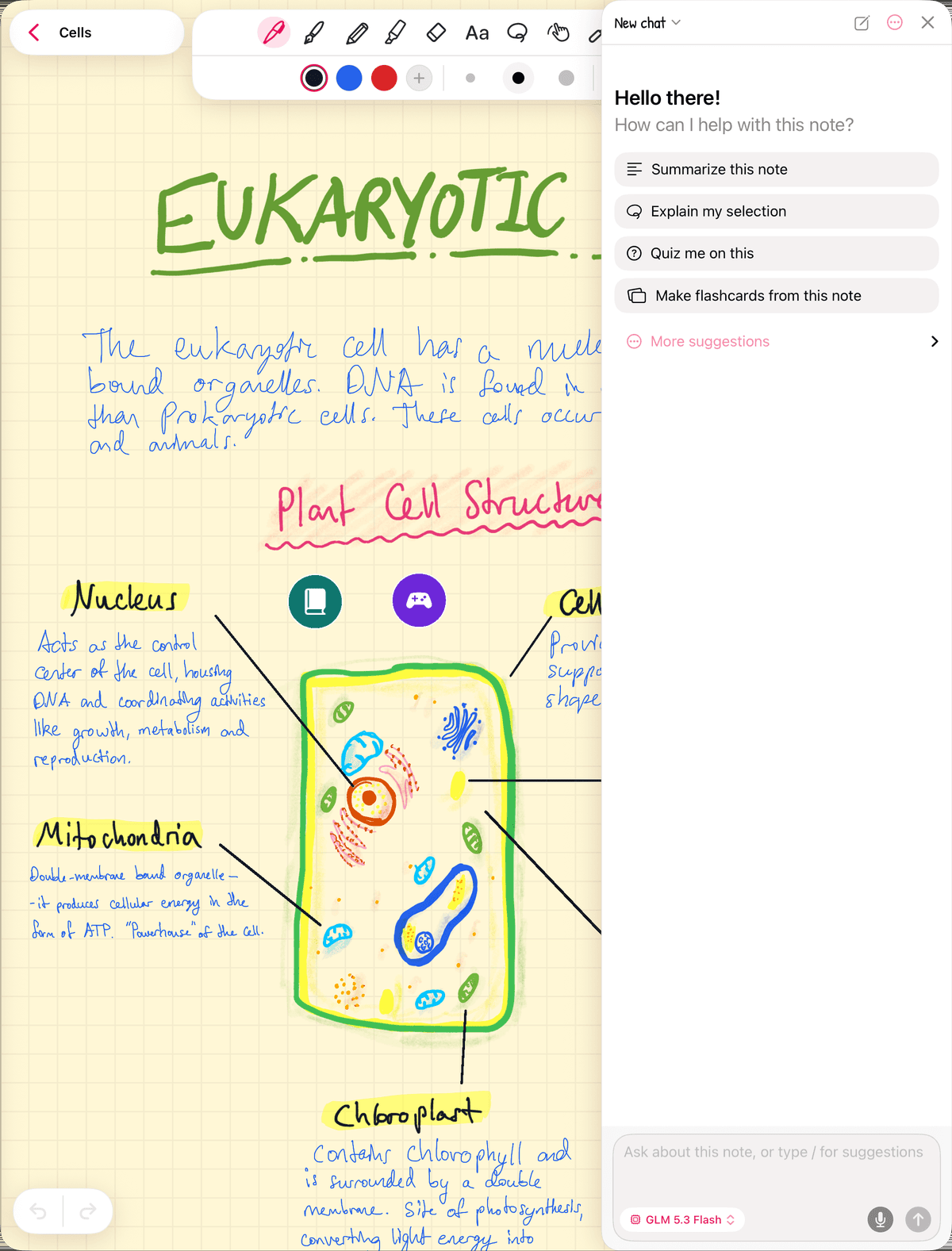
- Open the note and tap the sparkles button in the bottom-right corner to open the AI assistant.
- Tap Make flashcards from this note, or type your own request, like "Make 15 flashcards on the parts of the cell". Then send it.
- The assistant usually lists the cards it plans to make, front and back, before making them. If it doesn't, ask it to show you the list first. Ask for changes until it looks right.
- Say yes. The assistant makes a new deck, and the chat shows how many cards were added and to which deck.
- Tap Study to start right away. A shortcut to the deck is also added to your note, so you can tap it to study later.
The new deck appears in the Flashcards tab, next to the note it came from. Its cards are typed text, so you can open the deck with Edit Deck and fix or add to any card by hand.
Make cards from just part of a note
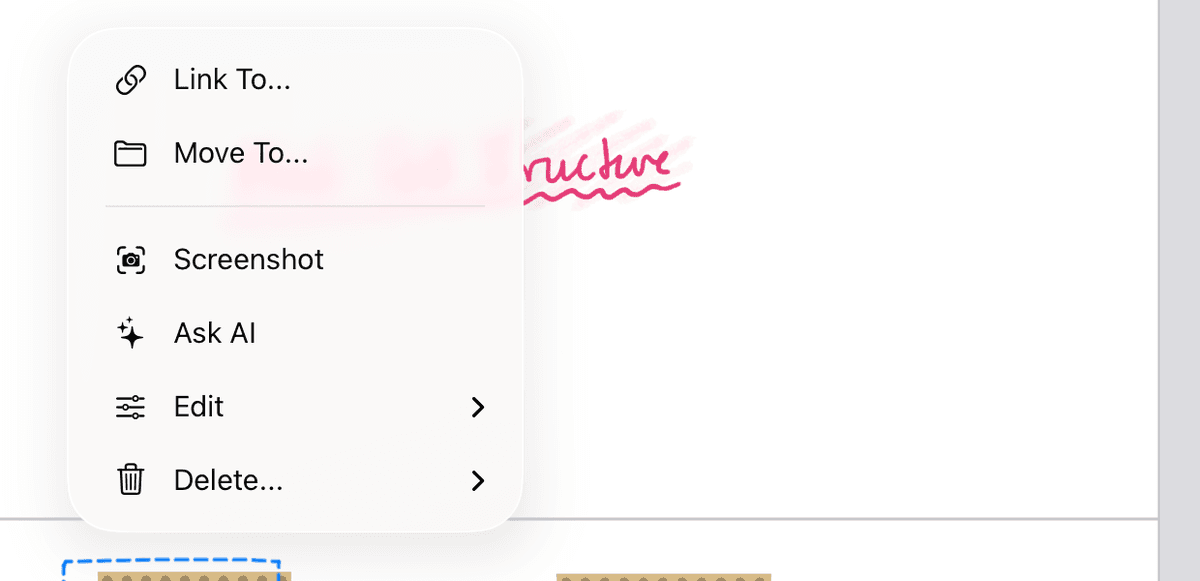
- Lasso the part you want, such as one page or one diagram.
- Tap the selection and choose Ask AI.
- Ask for flashcards about it. The assistant gets a picture of your selection, so it can read handwriting and diagrams too.
Limits
- Up to 60 cards per deck. A request for more is turned down rather than cut short, so ask for fewer or split the topic.
- It always makes a new deck. It can't add cards to a deck you already have.
- Free version: once you have a deck, the assistant can't make another one until you subscribe.
Credits or your own key
- Signed in: each request uses AI credits. New accounts get free starter credits, which work with the default model. Tap Add credits in the assistant to buy more.
- Your own key: on the sign-in screen, tap Use your own OpenRouter key instead, paste your key (it starts with sk-or-) and tap Save key. Requests then go straight from your device to OpenRouter, and OpenRouter bills you. You don't need an account.
How to sign in
- Open the AI assistant and tap Sign in.
- Tap Continue with Apple or Continue with Google.
Changed your mind?
To stop sharing with AI providers, open Settings (tap the Strawberry Notes name at the top of the sidebar), open AI Assistant & Dictation, tap Withdraw Permission, then Withdraw. The assistant stays off until you allow it again. Your decks stay where they are.