Make Image Occlusion Flashcards
Got a diagram full of labels to learn? Put it on a flashcard and cover the labels with tape. Strawberry Notes quizzes you on one label at a time.
Put the diagram on a card
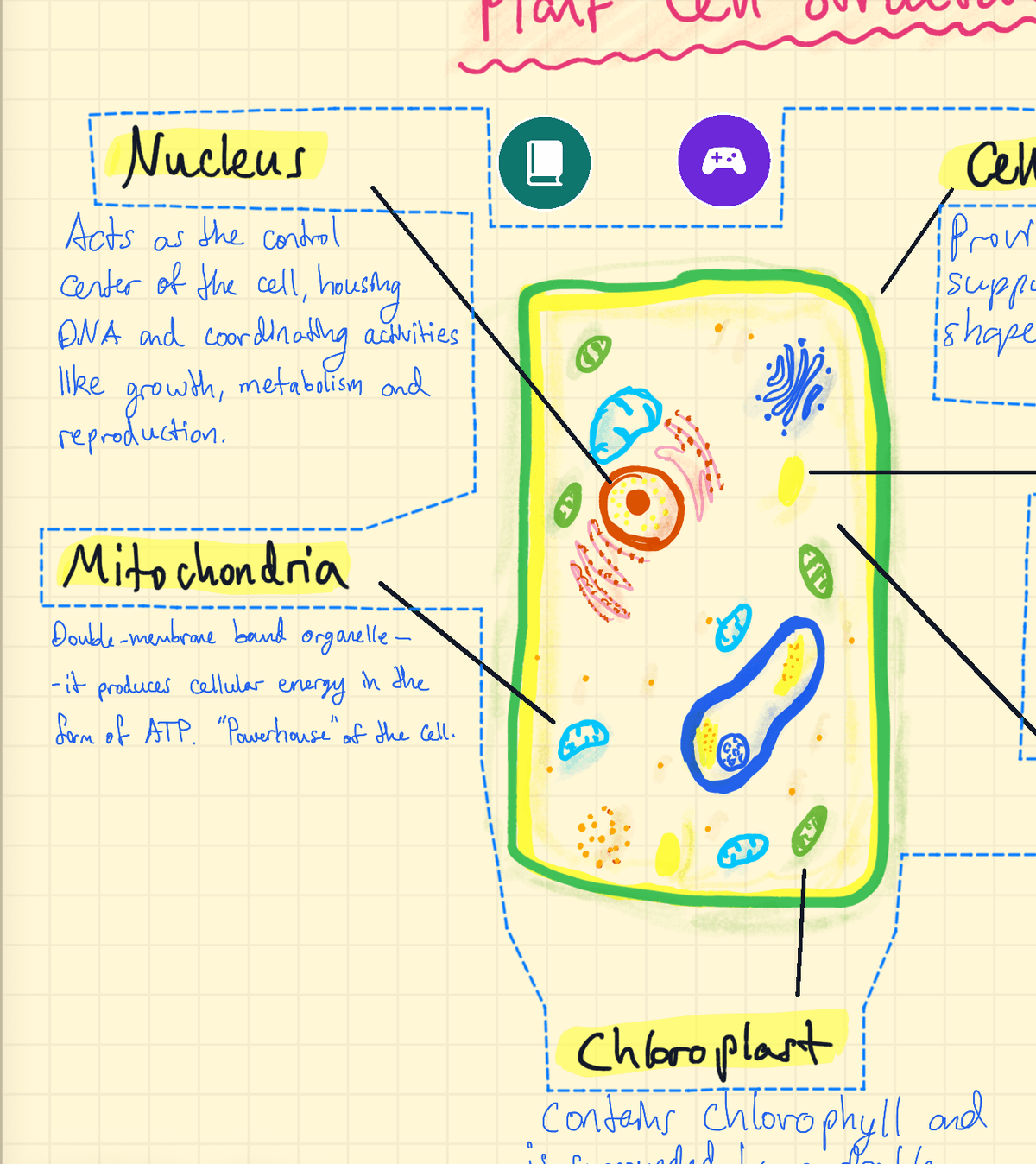
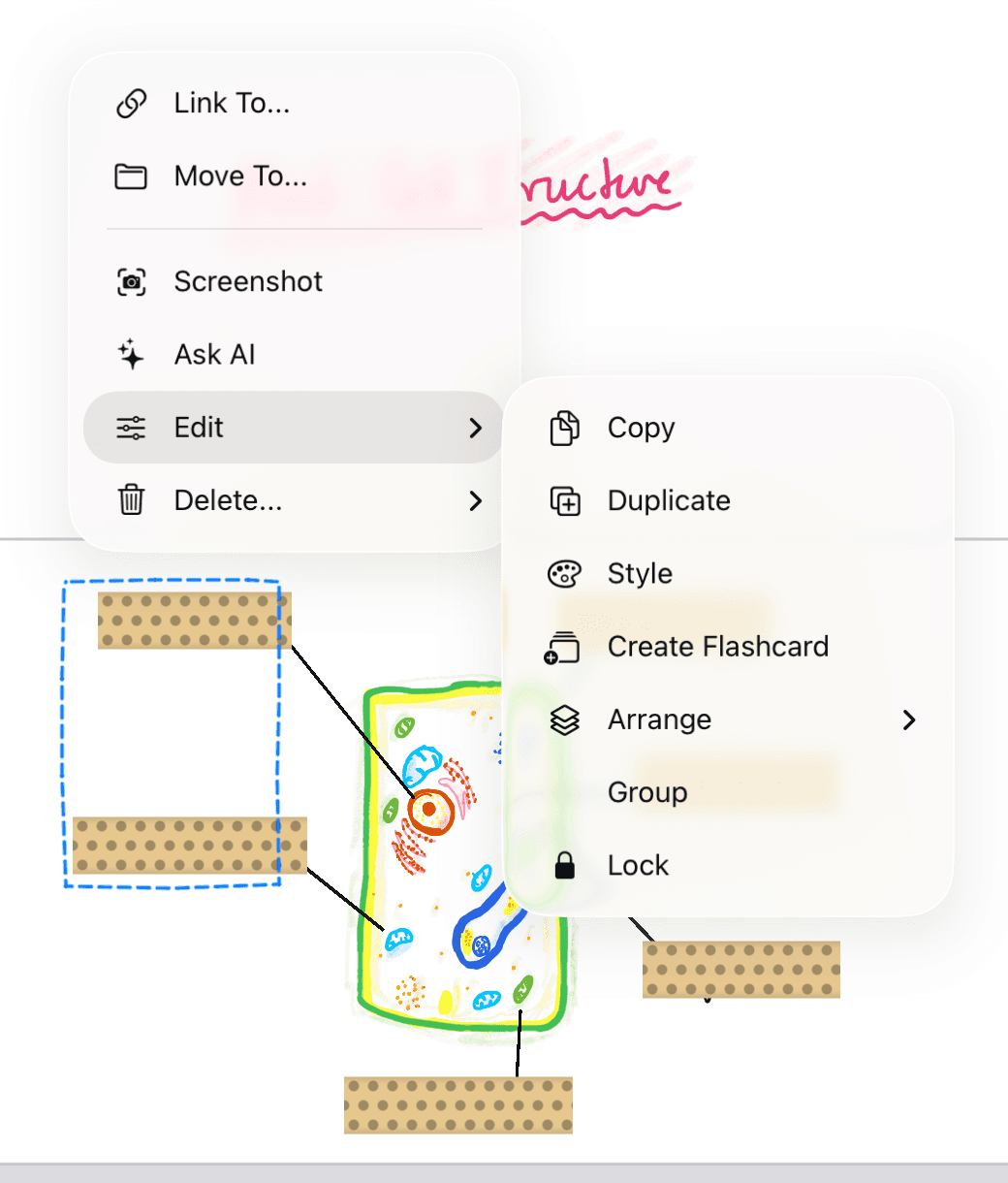
- In your note, lasso the diagram and its labels.
- Tap the selection, then Edit → Create Flashcard, and choose a deck.
- The deck opens next to your note, with the diagram on the new card.
You can also drag a lassoed diagram from your note onto a card in an open deck, or draw the diagram straight onto a card. See Make Flashcards from Your Notes.
Cover the labels with tape
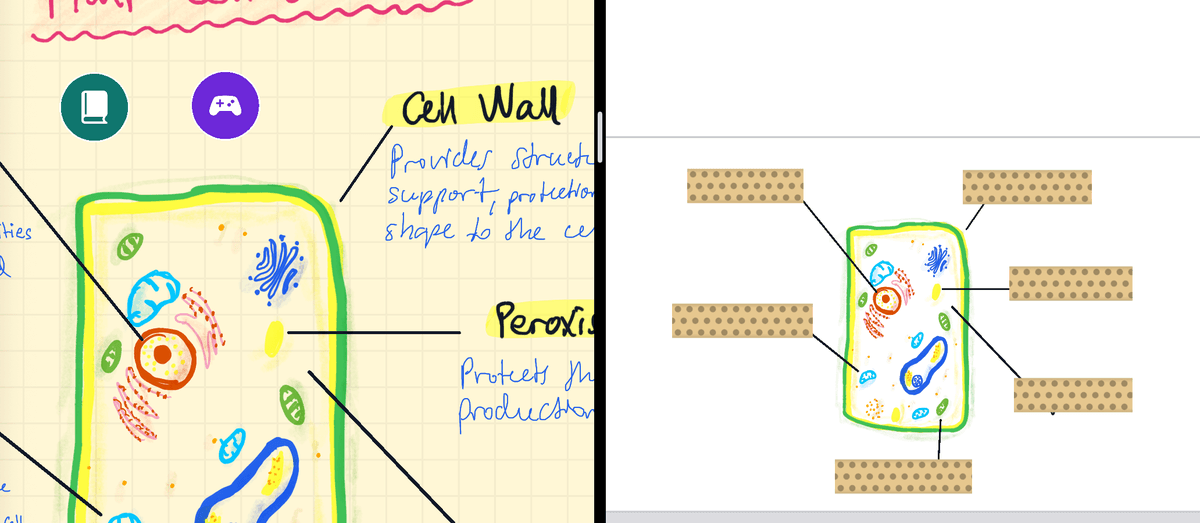
- In the deck, choose the Tape tool. Make sure it's set to Tape, not Peel.
- Draw a strip over each label you want to learn.
- That's it. A card with tape on it becomes an image occlusion card.
Each strip is its own question, with its own review schedule. Six strips make six questions, but the card still counts as just one new card for the day. Tape only quizzes you on a deck's cards; on a regular note it just covers things up.
Remove a strip
Switch the Tape tool to Peel, then tap or swipe across a strip to lift it off. Peel only removes tape, and the Eraser never touches tape, so the writing underneath is safe either way.
Ask about several strips together
- With the Select tool, select the strips that belong together.
- Tap the selection, then Edit → Group.
A group is one question, and all of its strips lift at once. Any strip that isn't in a group is a question on its own.
How a taped card is reviewed
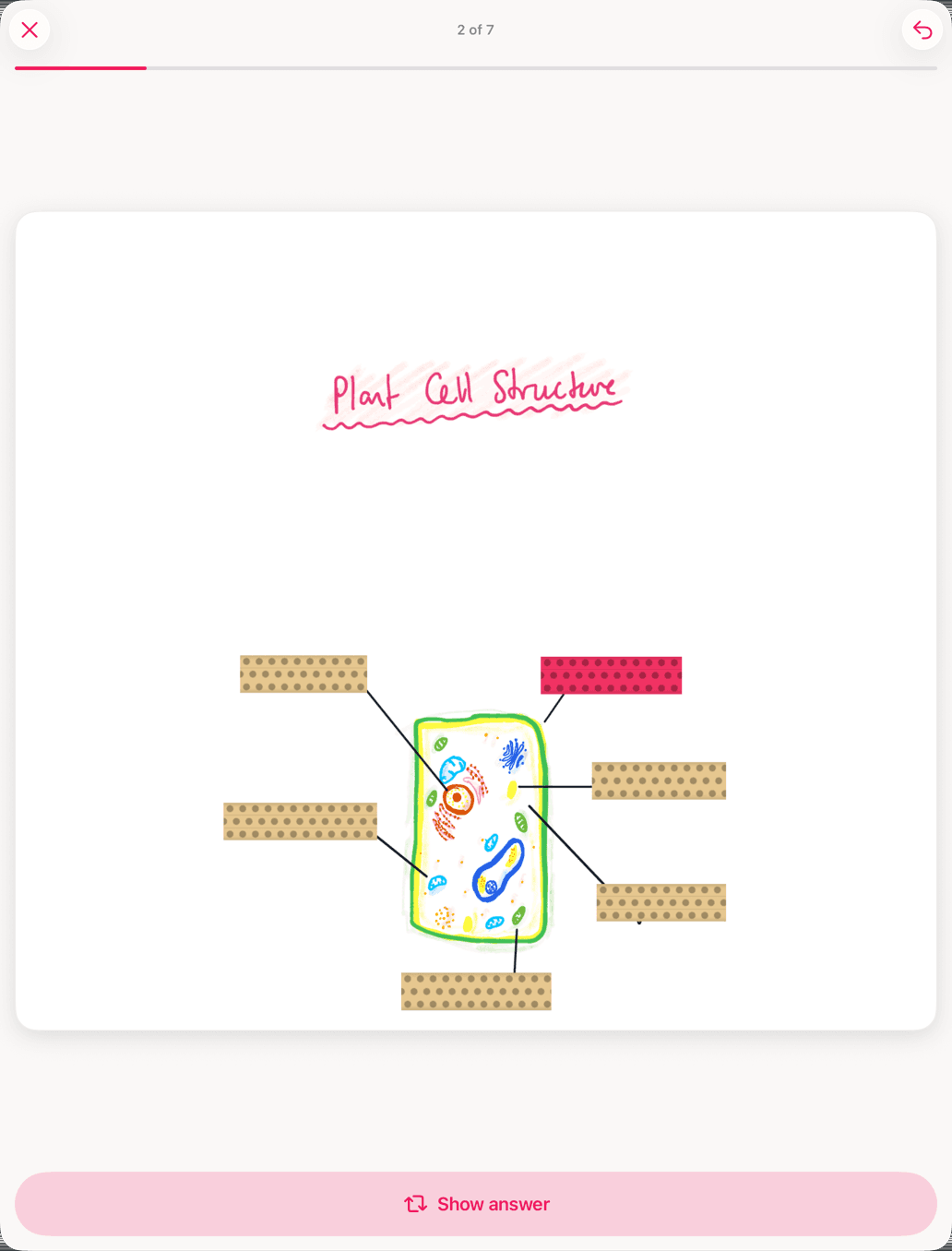
- You see the whole card, not a front and a back.
- Every strip is covered. The one you're being asked about is tinted, so you know which it is.
- Tap Show answer. That strip turns see-through so you can check yourself, then grade it.
- Each strip comes up separately, in a new order every session.
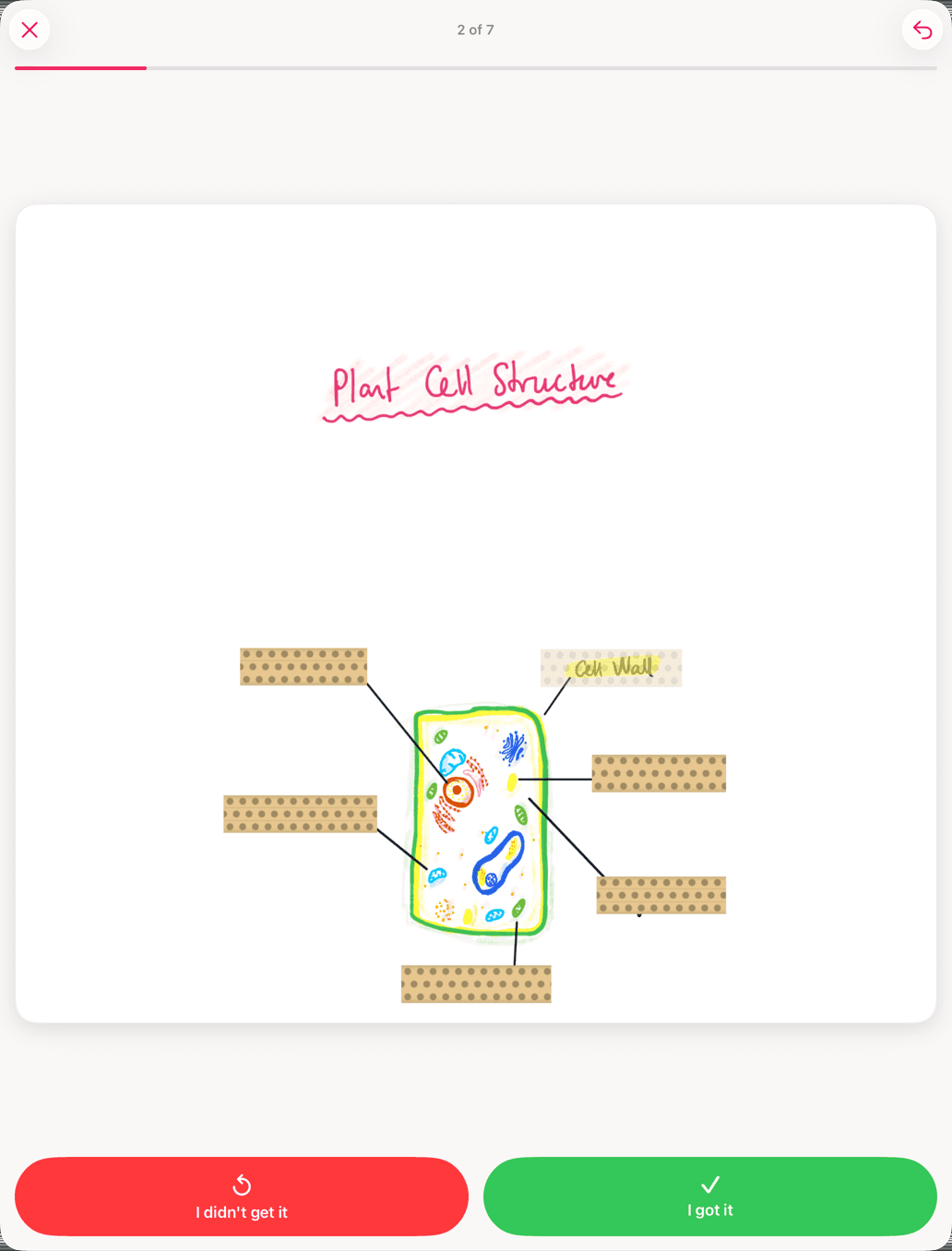
Hide one label, show the rest
Sometimes it's easier to see every label but one. Tap a strip on the card to make it see-through, and leave it that way. A card with a see-through strip reviews the other way round: every label shows, and only the one you're being asked about stays covered. To go back, tap the strip again so every strip is solid.
Tapping a strip just flips it between solid and see-through. Undo doesn't flip it back, so tap it again instead. Tapping works with most tools, but not with Select, Text, Eraser, Laser Pointer, or Tape set to Peel (a tap peels the strip off). If you tap a strip to peek while making a card, remember to tap it back, or the card will review this way.
Turn tape off for one card
- In the Flashcards tab, press and hold the deck and choose Deck Settings.
- Tap Cards. Each card with tape says Has tape and has a switch.
- Turn the switch off. The tape stays on the card as decoration, and the card is reviewed as a normal front and back.
Adding more tape later doesn't turn the switch back on. Turn it on yourself if you change your mind.