How to Take Notes on iPad (and Actually Remember Them)
New iPad, blank page, a hundred tools? Here's the simple way to take notes on iPad, plus the two study habits learning science says work best.
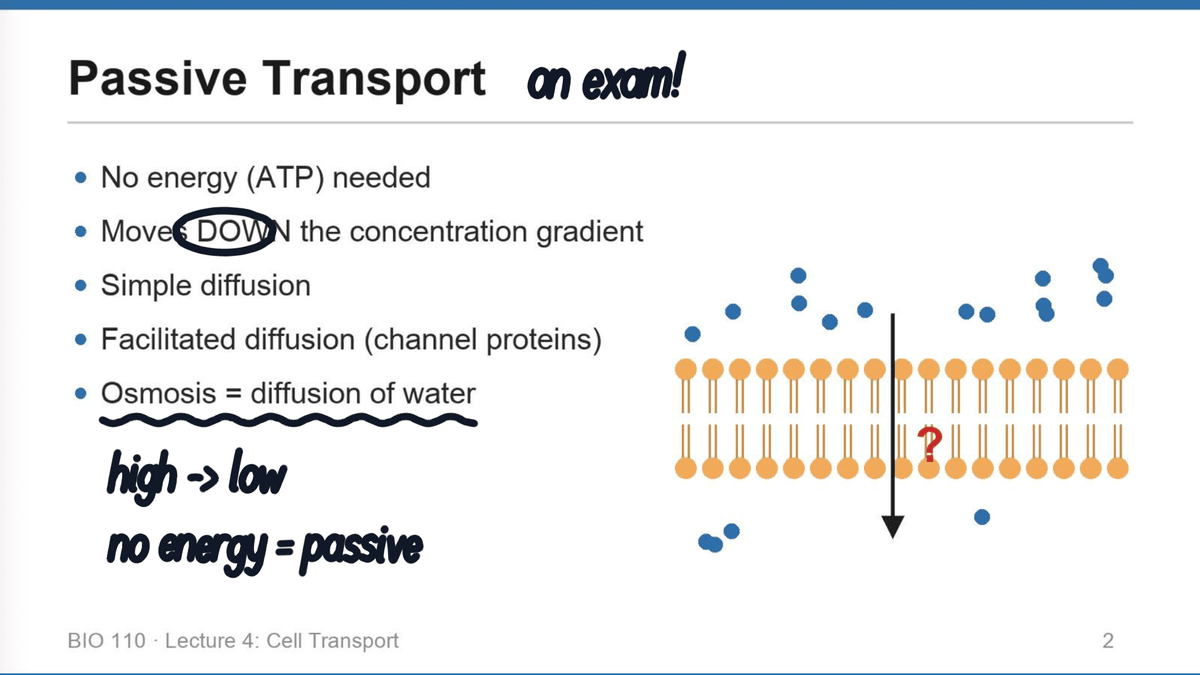
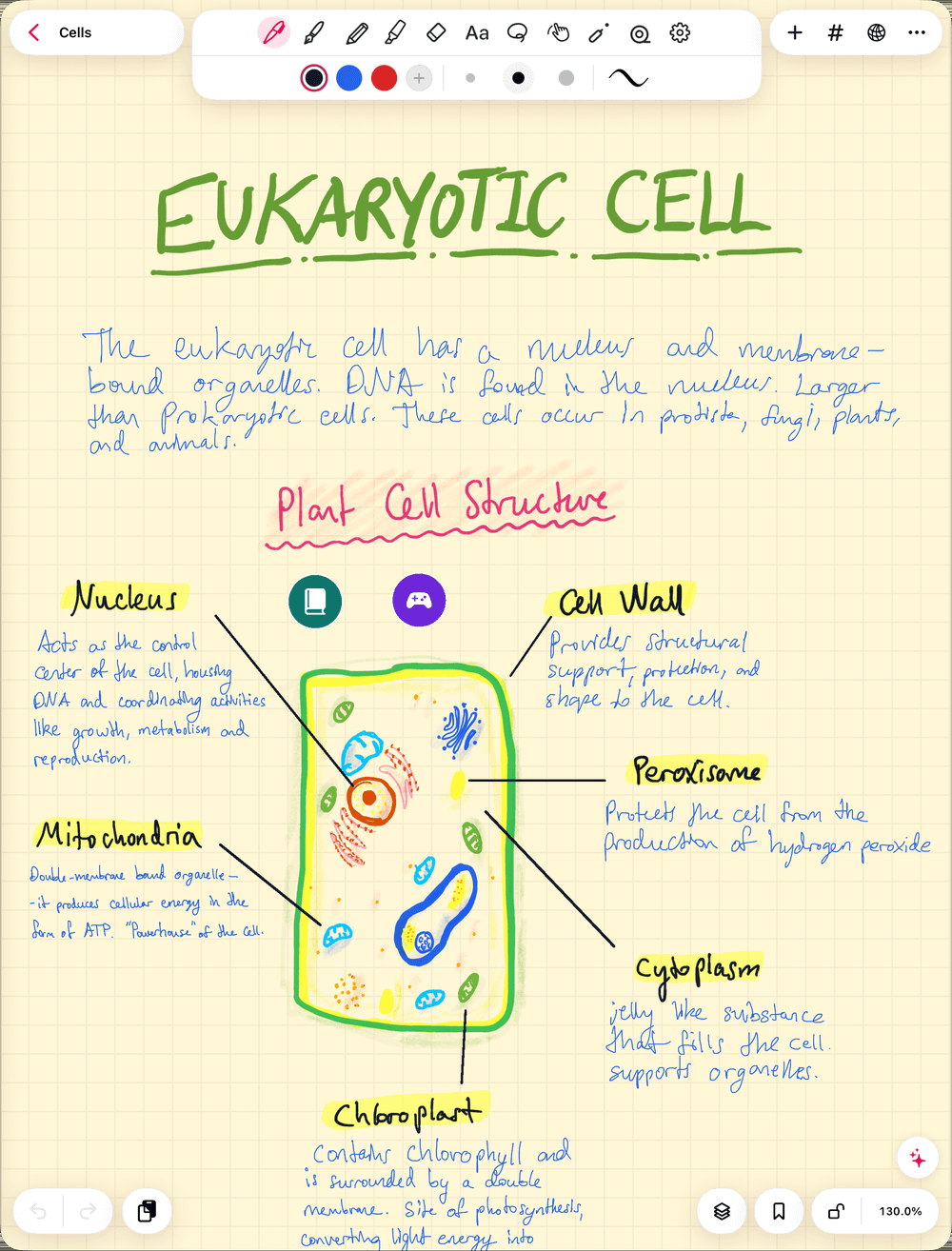
You got the iPad for school. You open a notes app, stare at a blank page and a hundred tools, and spend the lecture picking pen colors. Then the exam comes, and your notes just sit there. Here's the simple way: one note per class, write like it's paper, bring your slides in, then test yourself on what you wrote.
The first part is quick to set up. The second part is the one that gets you ready for the exam. Let's do both!
How do you start taking notes on iPad?
In Strawberry Notes:
- Tap + New and choose Notebook.
- Pick your paper: tap •••, then Background, and choose Blank, Grid, Lines or Dots.
- Write with your Apple Pencil. The pen, pencil, highlighter and eraser are all in the toolbar along the top.
That's it. Don't spend the lecture on colors and fonts. Set up your pens once instead: tap the gear at the end of the toolbar to open Toolbox, and tap Duplicate next to any tool. Each copy remembers its own color and thickness, so you can keep a fine black pen for notes, a red pen for corrections and a thick highlighter for key words, and switch between them with one tap.
No Apple Pencil? Tap ••• and turn on Finger Drawing.
Need room for a mind map or a big diagram? Choose Whiteboard instead of Notebook. It goes on forever in every direction.
What about lecture slides and paper notes?
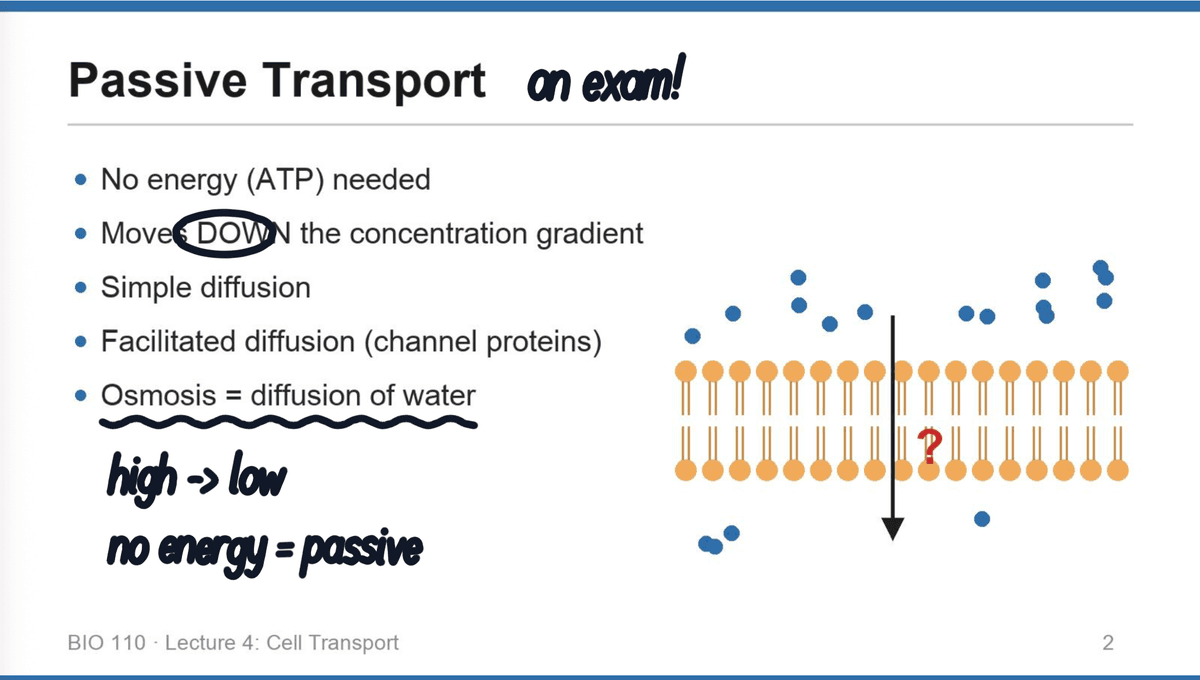
Don't copy them out. Bring them in and write on top.
- Lecture slides: download them as a PDF, tap + New → Import, and pick the file. Every slide becomes a page you can write on, right next to the bullet your professor is talking about.
- Paper notes and handouts: tap + New → Scan and scan the pages with your camera.
- From another app: in Files or Photos, tap Share and choose Strawberry Notes.
Write what the slides leave out: the example your professor gives, the "this will be on the exam", your own question marks. The slides already have the bullets, so you don't need to copy them.
How do you keep your notes organized?
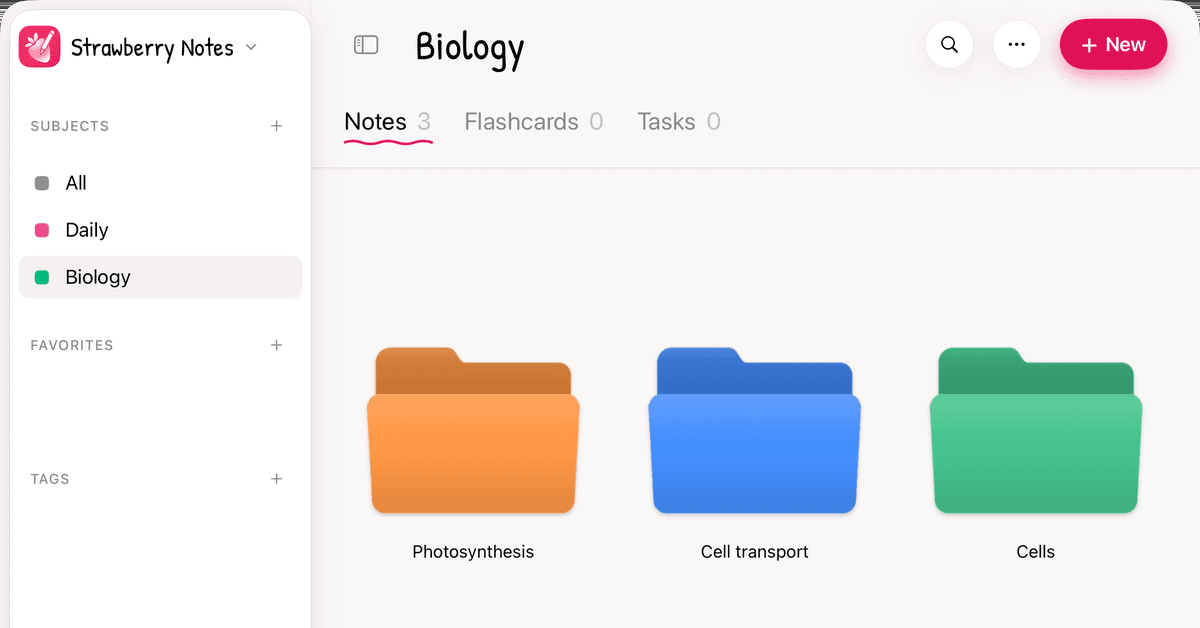
Make a subject for each big area, like Math, Biology or Chemistry. Inside it, make folders however you like: one per class, one per unit, one per exam. Drag notes in.
That's all the organizing you need, because you don't have to remember where something is. Library search finds words in your handwriting too.
Want to go deeper on one idea? Lasso it, tap Link To…, and choose New Subnote. The idea gets a note of its own, nested inside this one, and tapping what you lassoed takes you straight there. Link To… also links anything you've written to another note, so related ideas from different lectures point at each other.
With Premium, tap the Sky View button at the top of any note to see your whole library as a map: subjects, notes, subnotes, decks and the links between them.
Want to actually remember it? Here's what learning science says
Good notes are only half the job. The other half is studying them the right way, and the research gives a clear answer.
In 2013, a team of psychologists led by John Dunlosky reviewed ten popular study techniques. Only two earned their top rating, "high utility": taking practice tests and spreading your study out over time. Rereading and underlining, two habits a lot of us lean on, came out low.
In plain words:
- Testing yourself beats reading again. Trying to pull the answer out of your head is the studying. Rereading feels like work, but the review rated it low: the gains were small and inconsistent.
- Spread it out. Spacing your study sessions out over time was the other technique the review rated highest. A few minutes most days, not one long night before the exam.
So stop rereading your notes, and start quizzing yourself on them. (Highlighting key words while you write is fine. Just don't let it be your whole study plan.) Here are three ways to do that in the app, from quickest to most thorough.
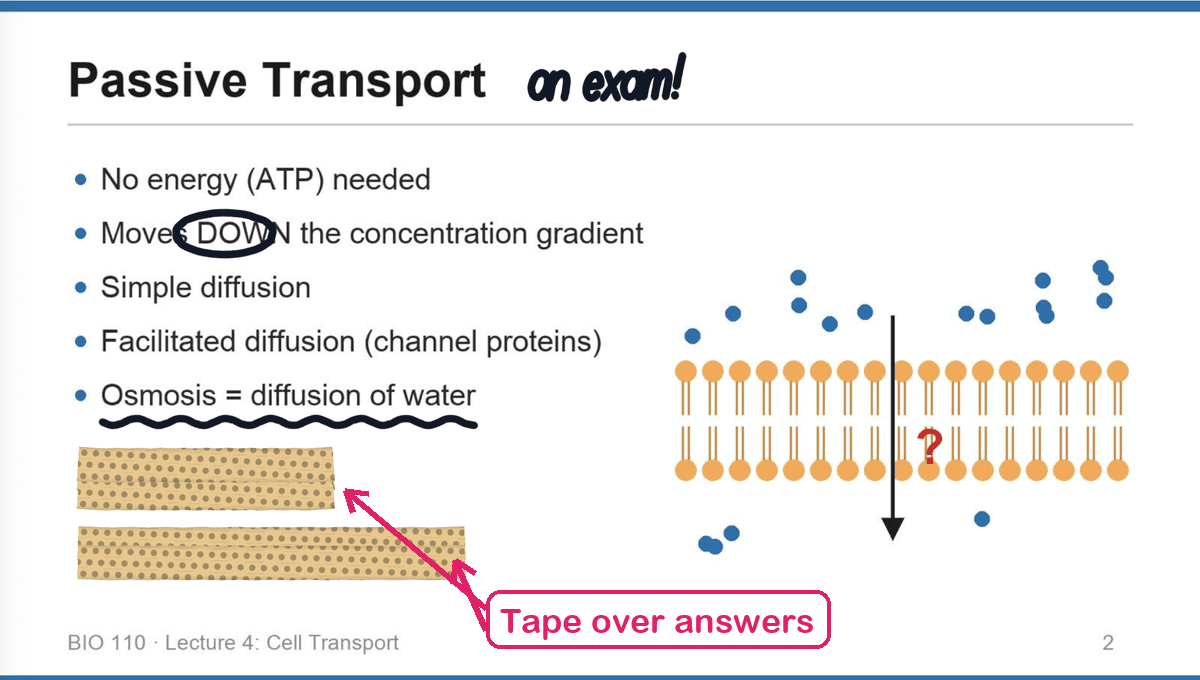
1. Cover your notes with tape
Pick the Tape tool and draw a strip over an answer: a definition, a formula, a label. Now try to say what's under it. Tap the strip to peek through it, tap again to cover it back up. Switch the tool to Peel when you want the tape gone for good.
It's the old "cover the page with your hand" trick, except your hand doesn't get tired.
2. Turn the important parts into flashcards
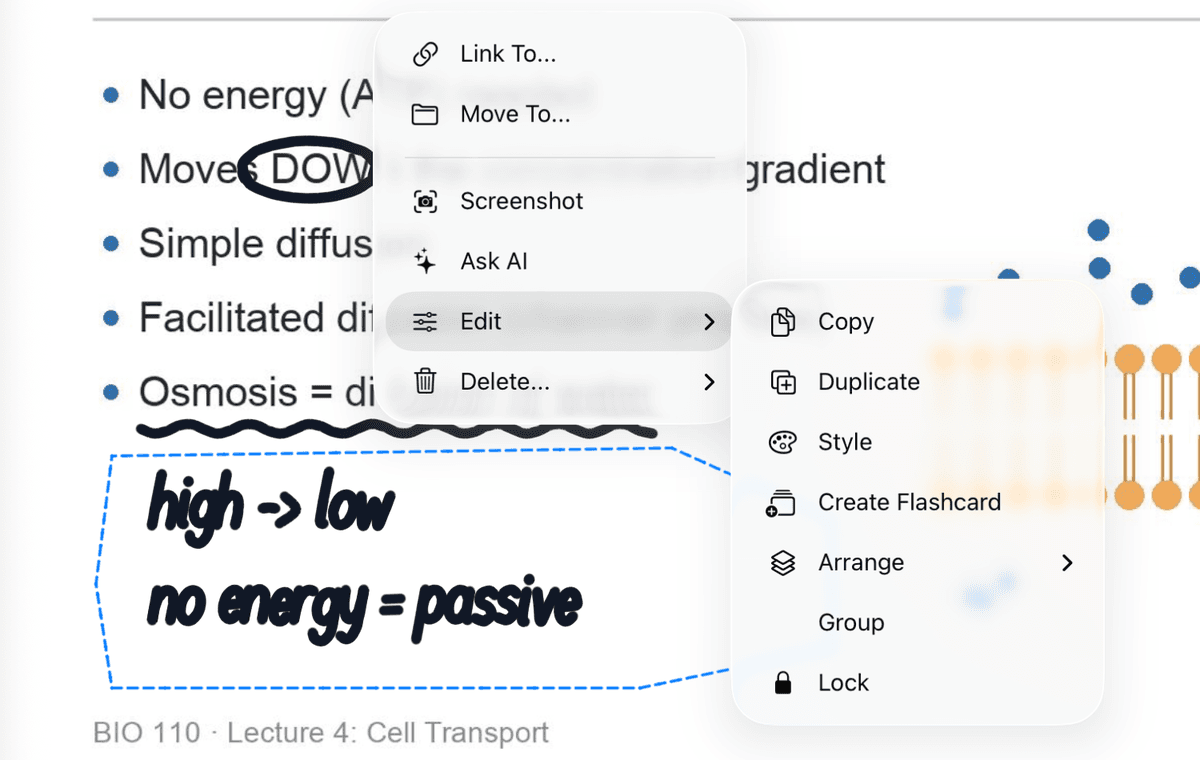
- Pick the Lasso tool and draw around something you need to know.
- Tap the selection, open Edit, and choose Create Flashcard.
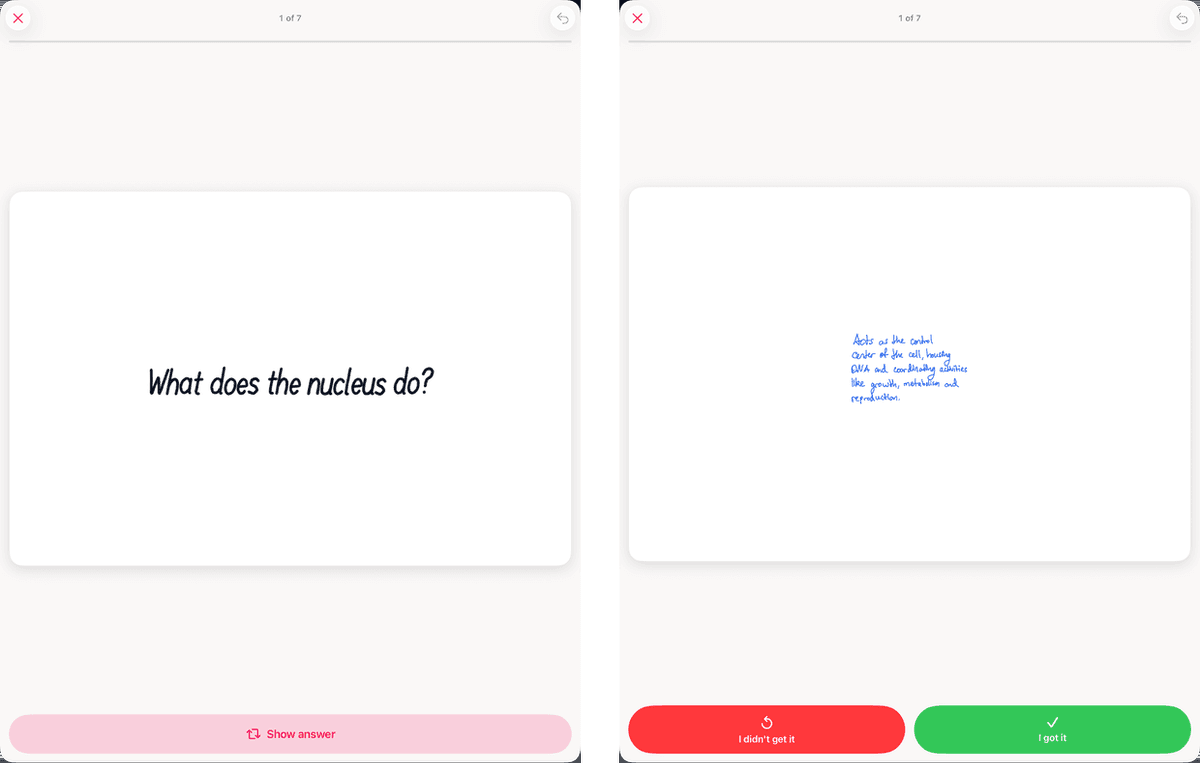
- Pick a deck and write the question on the front. Your handwriting is already on the back.
Then study for a few minutes a day. Tap Show answer, then I didn't get it or I got it. That's where the spacing comes in: the app schedules every card for you, bringing it back right before you'd forget it. The Flashcards tab shows how many are Due today, so you always know when you're done.
Full guide: how to turn handwritten notes into flashcards.
3. Let AI quiz you
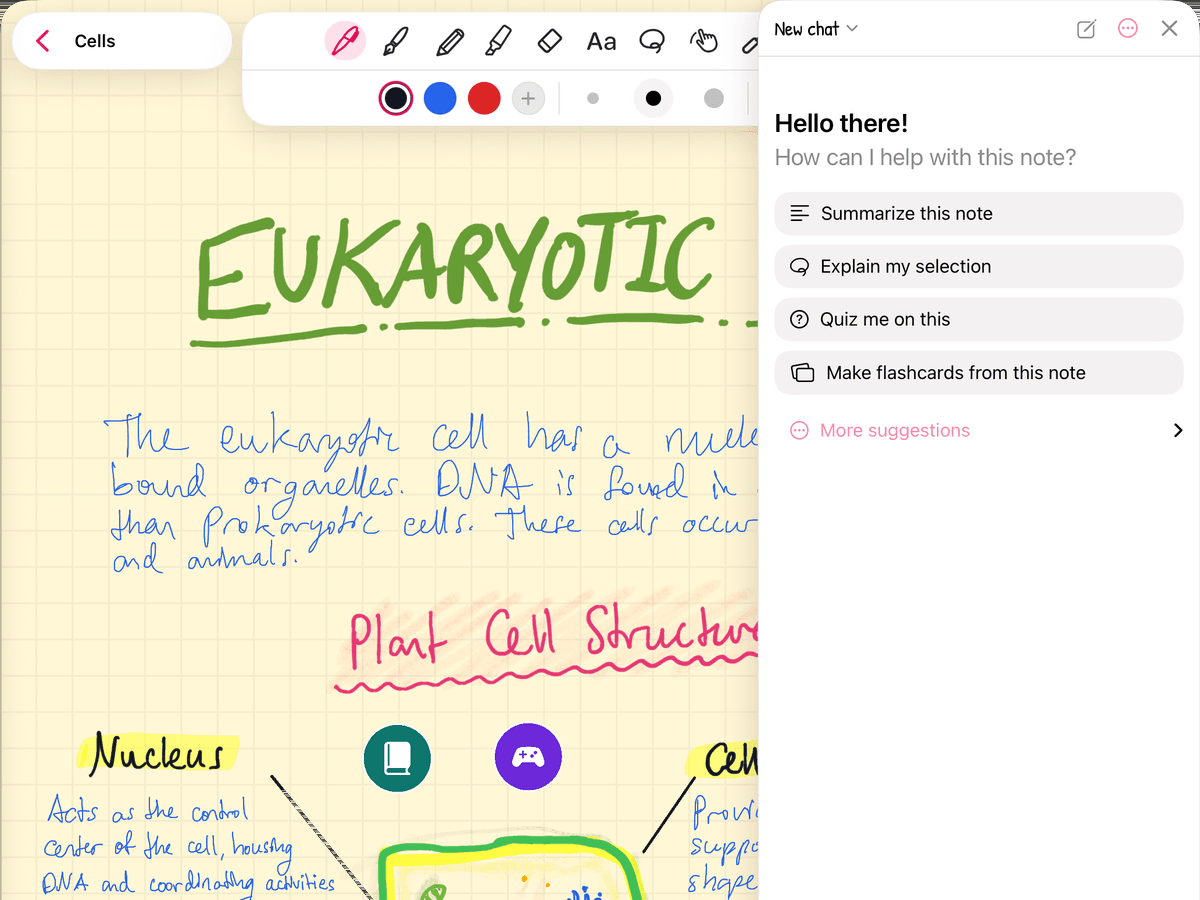
Tap the sparkle button in a note, then tap Quiz me on this. It writes questions from your notes, so you can test yourself on a whole lecture in a few minutes. Stuck on one part? Lasso it, choose Ask AI, and tap Explain my selection.
AI uses credits (you get free starter credits when you sign in with Apple or Google) or your own OpenRouter key.
What does a simple study routine look like?
- Right after class (2 minutes): turn the three things you're most likely to forget into flashcards.
- Most days (10 minutes): clear your cards that are Due today. This is the habit that matters most.
- The week before the exam: tape over your notes and quiz yourself, then let AI quiz you on each lecture.
More on why it works: active recall vs. rereading and spaced repetition for students.