How to Turn Handwritten Notes into Flashcards on iPad and iPhone
Made all those notes and now need flashcards? Lasso your handwriting, tap Create Flashcard, write the question. Done. AI decks and image occlusion too.
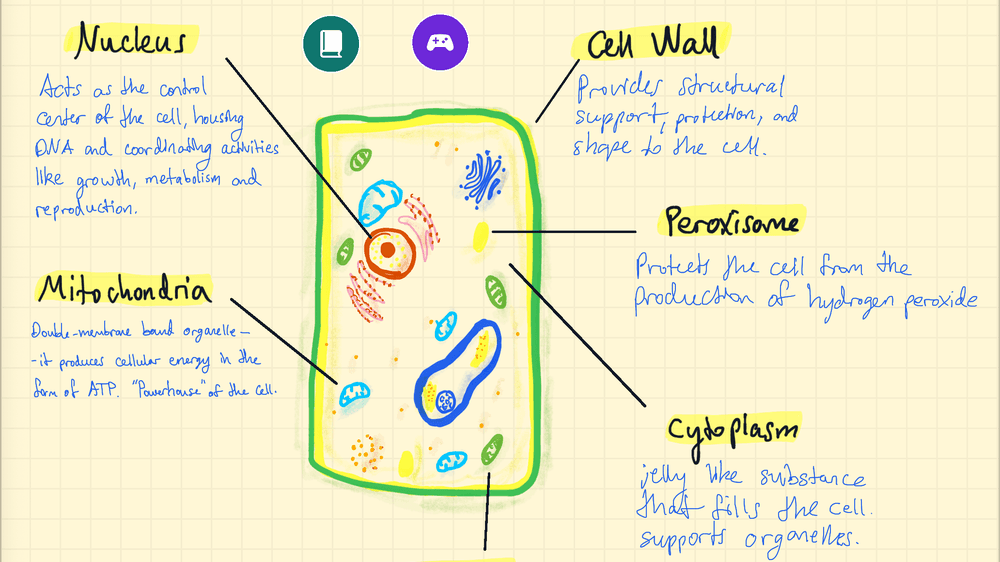
You don't have to remake your notes as flashcards. In Strawberry Notes, lasso what you want to remember, tap Edit → Create Flashcard and write the question, or let the AI make the whole deck.
Do you really have to make every flashcard from scratch?
You've spent so much time making notes. Then the exam gets close, and you realize you need to make some flashcards. You open the flashcard app, and it looks at you, blank. "Oh no," you say, "I have to create all these flashcards from scratch!"
And so everything in your notebook has to be made a second time: the question typed or drawn on the front, the definition or diagram on the back, the notes screenshotted, cropped, pasted in... One card at a time, for every key idea, in every lecture!
Who has time to make flashcards for every key idea in every class? If one lecture gives you 10 cards and each takes about a minute to type and check, that's 10–15 minutes of your time before you've studied anything, just for one lecture! Imagine all the classes and lectures you have. No wonder getting good grades is hard!
Have no fear, we've got you covered.
In Strawberry Notes you don't rebuild anything. Lasso the part of your notes you want to remember, tap Edit → Create Flashcard, and write the question on the front. That's it. Your handwriting goes onto the back of the card exactly as you wrote it, and the card joins a deck that schedules its own reviews.
Don't want to make them by hand at all? Ask the built-in AI to make a deck from the whole note.
And diagrams? Those work too. Copy the diagram onto a card, tape over the labels, and each label becomes its own question (image occlusion cards). Here's how each one works.
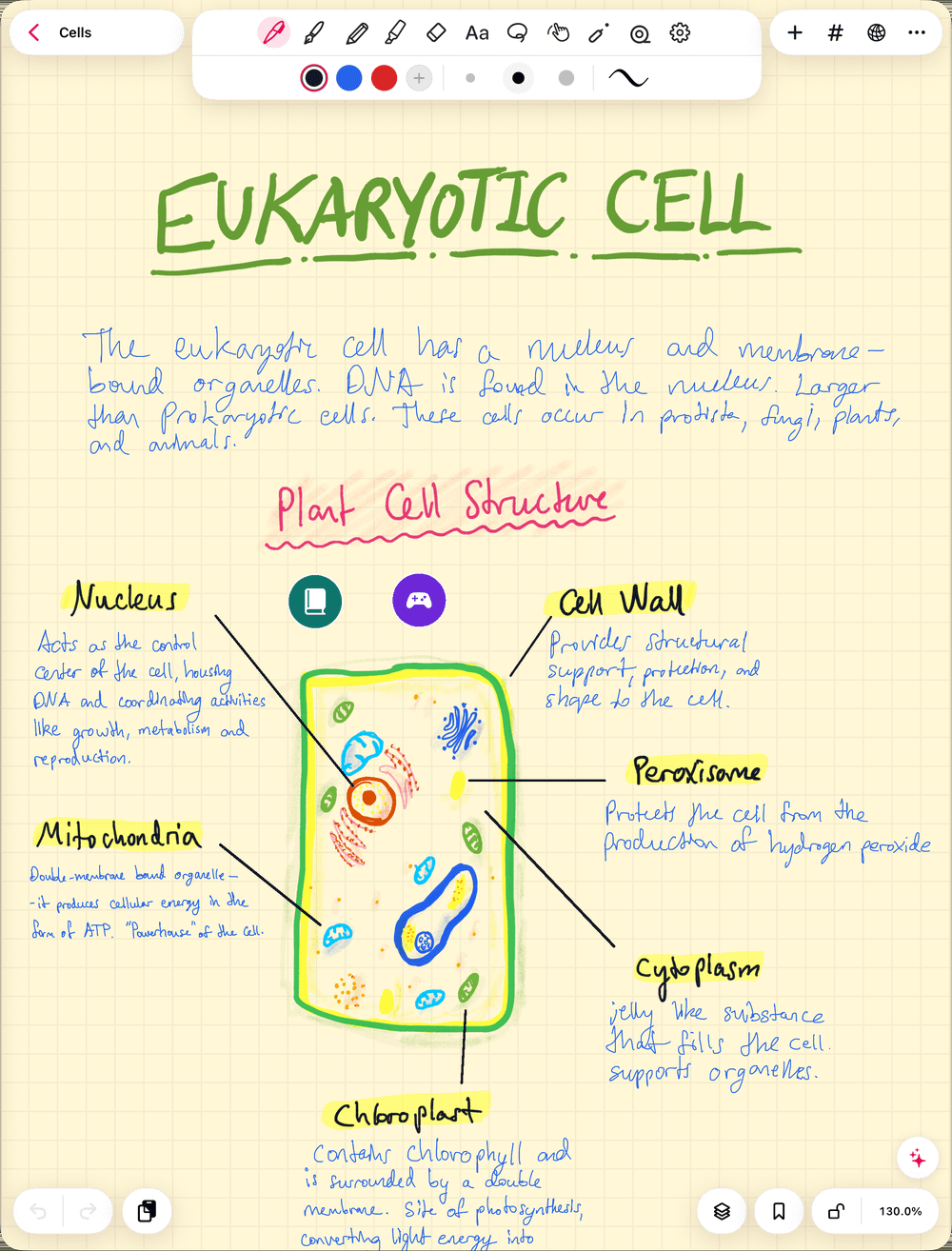
How do you turn handwritten notes into flashcards in Strawberry Notes?
Five steps:
- Open the note you want to study from.
- Pick the Lasso tool and loop the answer you want to remember: a definition, a formula, a labelled sketch.
- Tap the selection, open Edit, and choose Create Flashcard. If the first menu doesn't show Edit, tap the arrow at its end.
- Choose a deck from Recent decks, or tap New deck… and name it.
- Write the question on the front. The deck opens beside your note with your handwriting on the back. Your note stays exactly as it was.
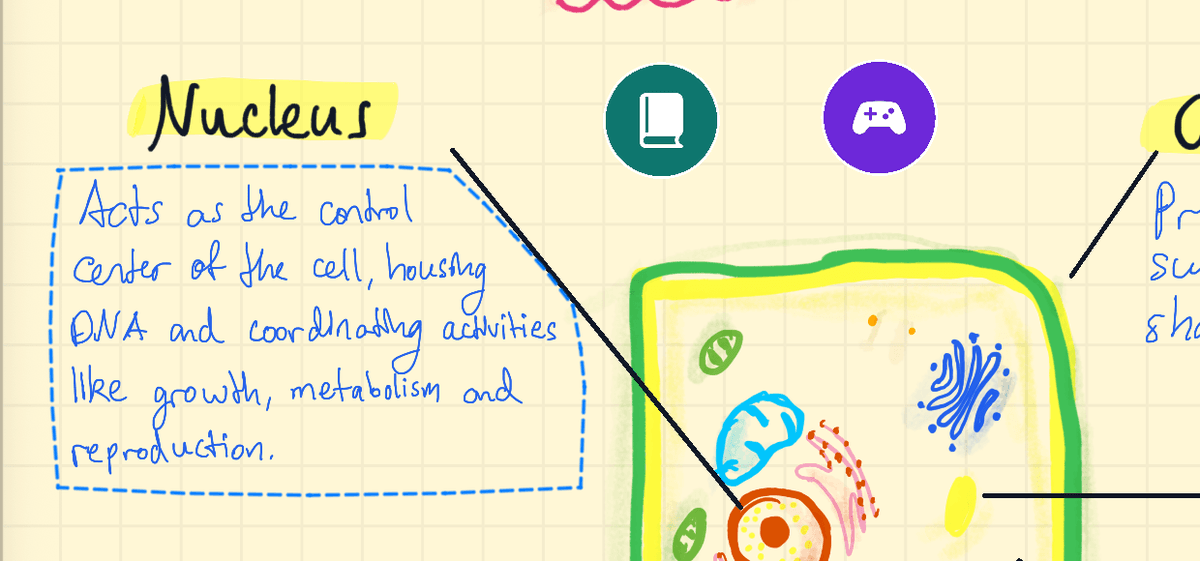
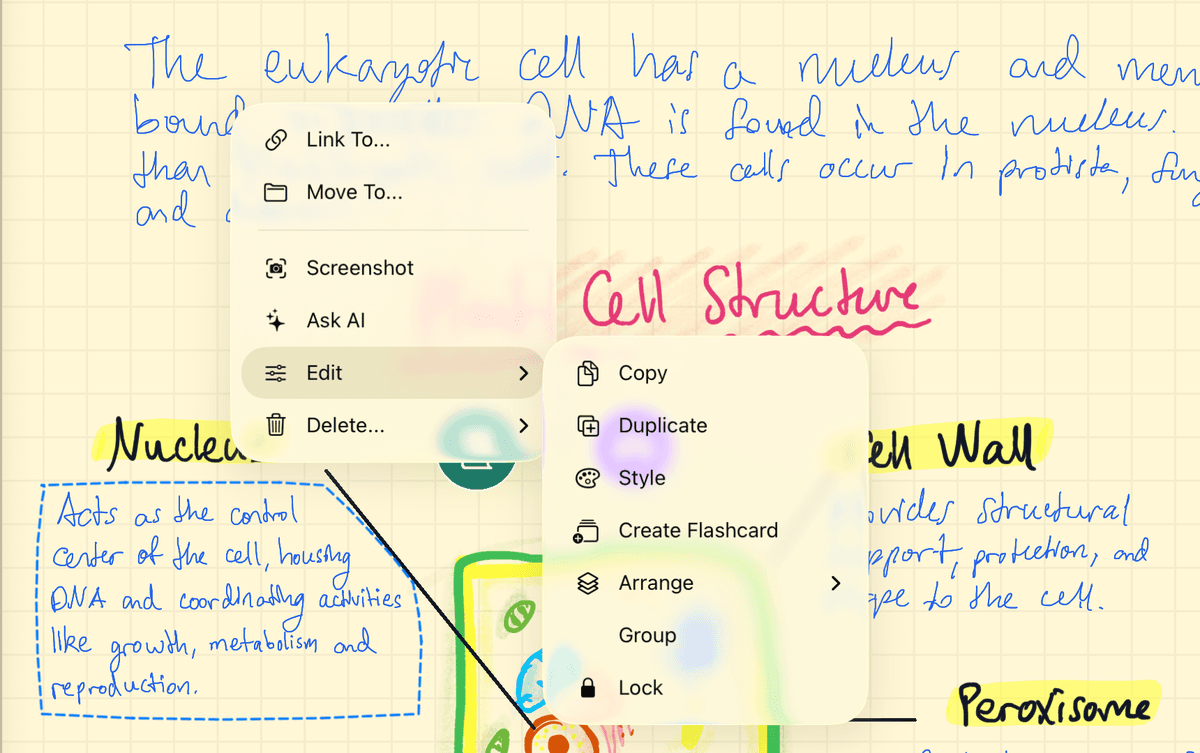
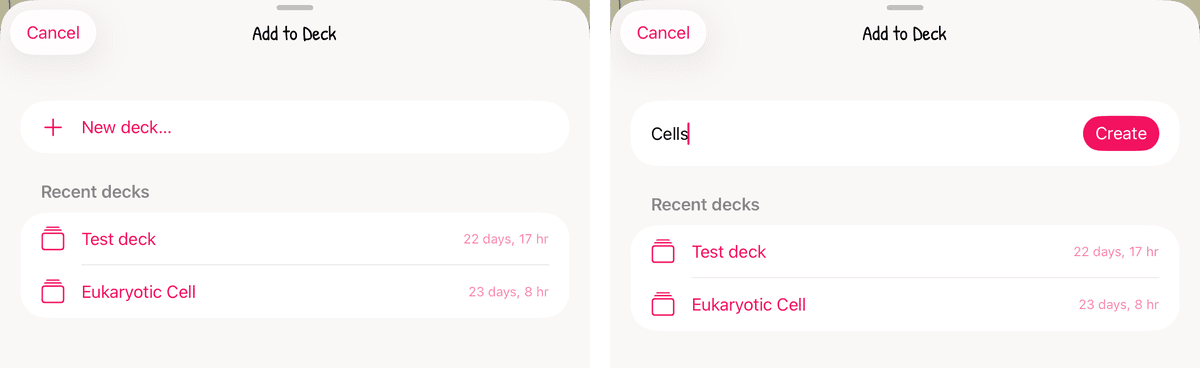
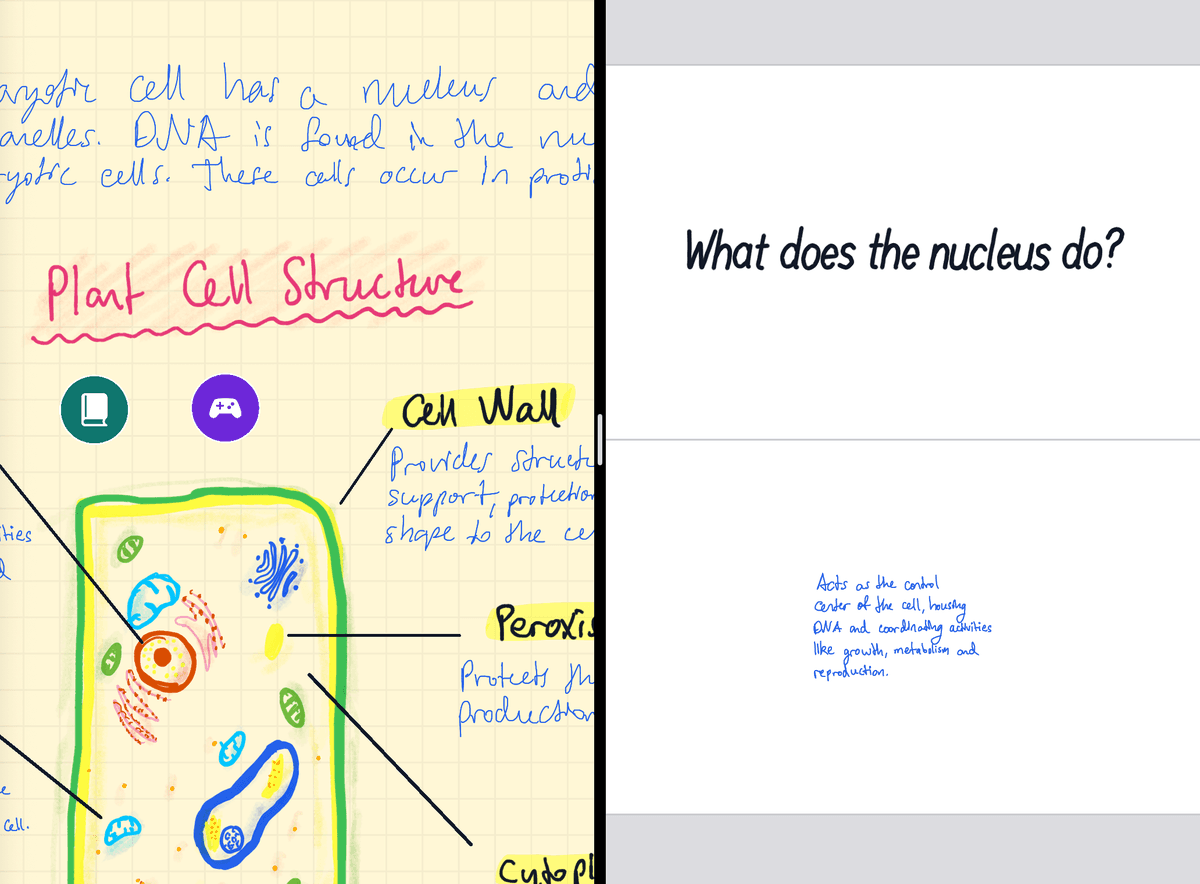
Making a lot of cards? Keep the deck open beside your note. On iPad, drag the deck from the sidebar to the edge of the screen and it opens next to your note. Then lasso anything and drag it straight onto a card. Your note keeps its copy.
More details, like writing cards by hand and what can go on a card: Make Flashcards from Your Notes.
What question should go on the front?
Since your notes are already on the back, the question is the one thing you write, so make it ask for something specific. "Nucleus?" lets you glance, think "control center", and flip. "What does the nucleus do, and what does it hold?" makes you actually produce the answer, which is what you'll have to do in the exam.
If a definition holds two facts, lasso it twice and write two questions.
Can AI make the flashcards for you?
Yes. Open the AI assistant in a note and ask it to "Make flashcards from this note". It shows you the cards it plans to make, and once you confirm, it builds the deck. Give it a quick read before you study: AI cards are typed, they leave out your drawings, and now and then they skip the detail your lecturer stressed. Credits, limits and using your own key are covered in Make Flashcards with AI.
How do you make image occlusion cards from a diagram?
It starts the same way as any card:
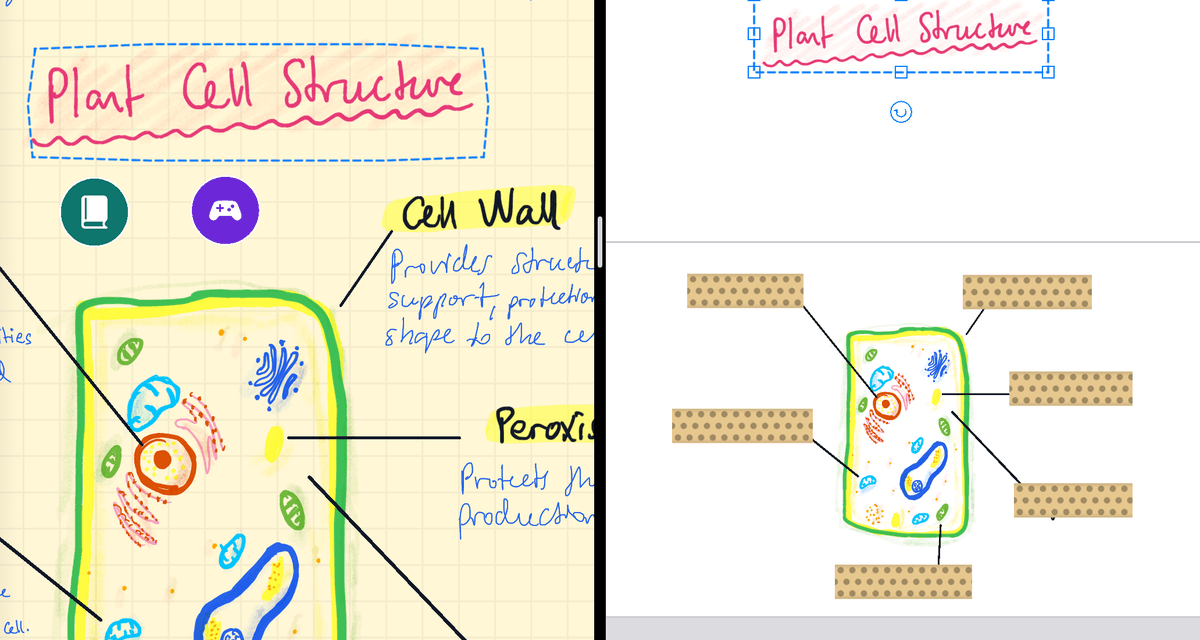
- Lasso the whole diagram and choose Edit → Create Flashcard.
- Pick the Tape tool and draw a strip over each label on the card.
- That's it. Each strip becomes its own question with its own review schedule.
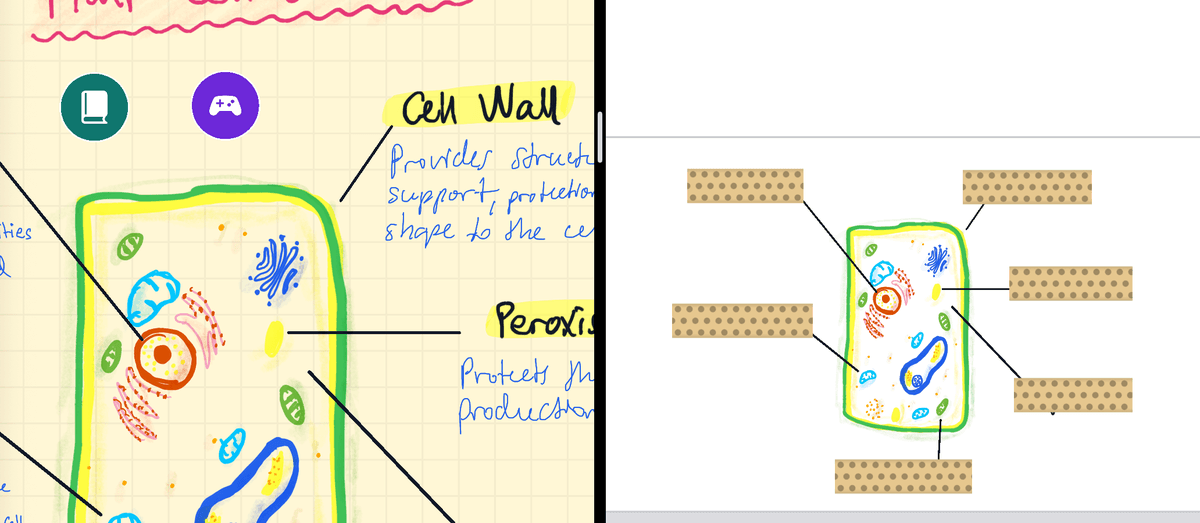
One cell diagram becomes six questions, and the label you keep forgetting comes back more often than the ones you know. To learn how grouping strips and reviews work, see Make Image Occlusion Flashcards. For what to hide, read How to Make Image Occlusion Flashcards for Diagrams.
How do you review the cards?
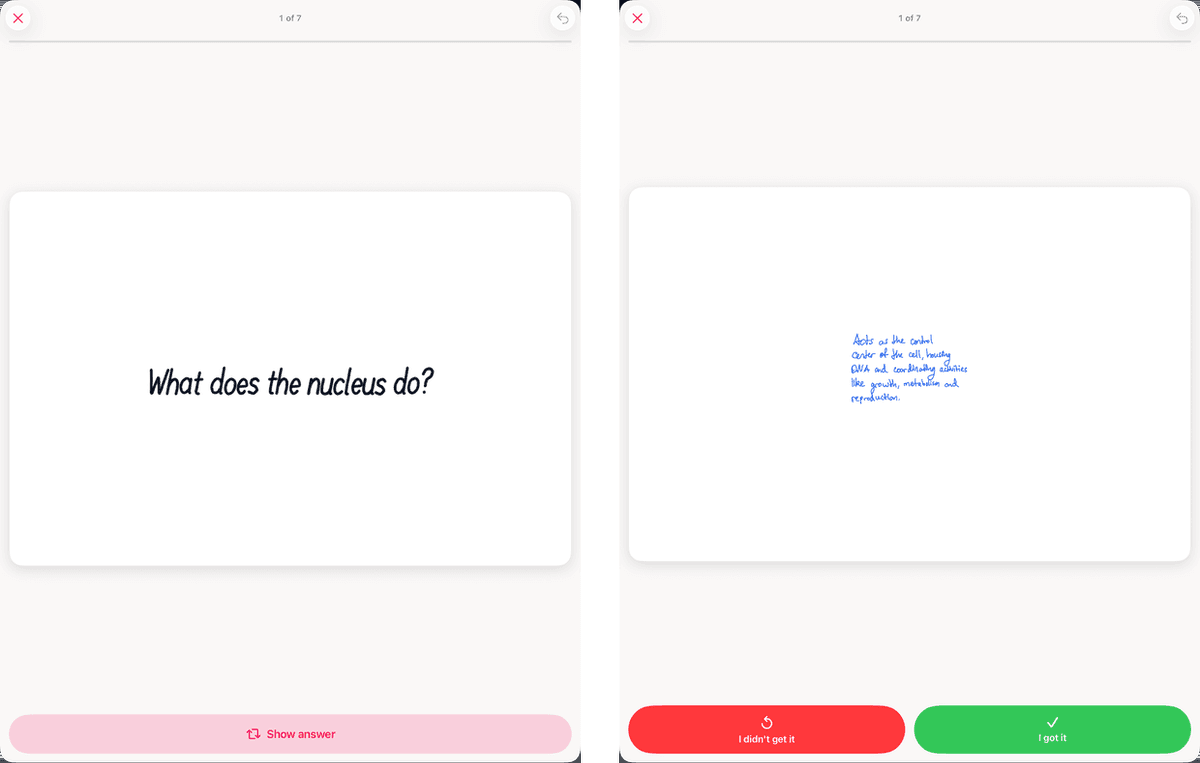
Open the deck, answer in your head, tap Show answer, and grade yourself: I didn't get it or I got it. The app schedules every card with spaced repetition, so each one comes back right before you'd forget it. Missing a few is part of the plan, so grade honestly. Why this works: Spaced Repetition for Students: Keep the Review Pile Small and Active Recall vs Rereading: Why You Blank in the Exam.
Already have Anki decks?
Bring them with you. Strawberry Notes imports .apkg and CSV files, keeps the images, and turns cloze cards into cards with tape over the hidden text. Your Anki review history doesn't come along, so the cards start as new. Steps: Import Anki Decks.